Laptop won't turn on — triage
Divert rules
Dell and other OEMs ask the same first questions before display work: lights? fans? logo? Mixing no-power into the blank-screen tree wastes time and pushes people into the wrong OEM wall.
Steps
Step 1. Look for any LED or fan activity
Press power once. Watch charging and power LEDs, listen for fans, try Caps Lock. Even a brief blink counts as power activity for divert purposes.

Step 2. If LEDs respond, leave this page
Open laptop no display but power on immediately. First cut: external monitor test. Do not continue OEM “dead laptop” deep dives while lights are on.
Step 3. If nothing powers on, stay on power basics
Confirm the wall outlet, try a known-good adapter with the correct wattage, and follow the OEM hard-reset / no-power article for your exact model (HP, Dell, and Lenovo each publish separate no-power flows). This site does not replace those OEM power procedures.
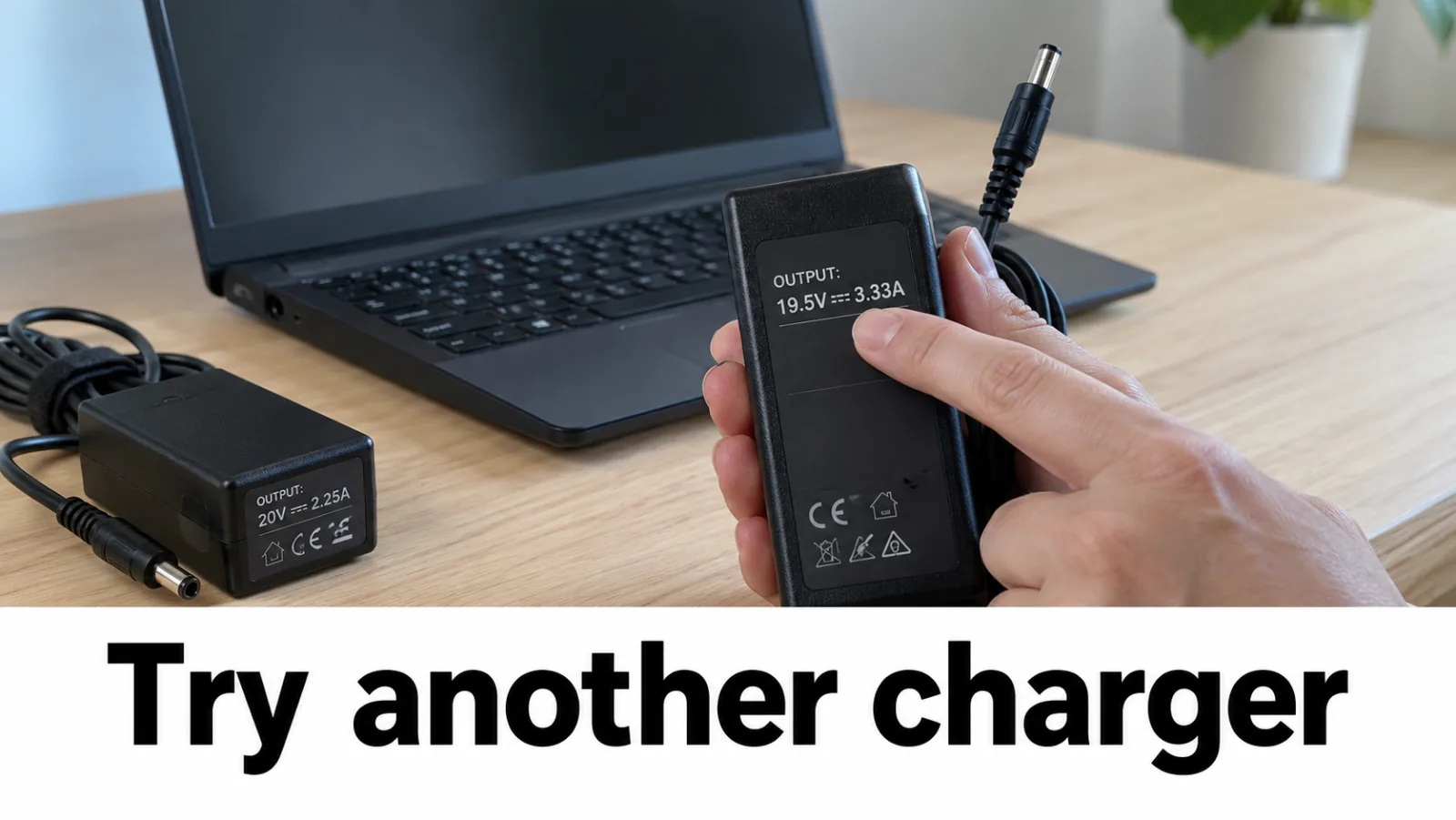
Step 4. Return to the main tree when power returns
As soon as LEDs or fans respond, stop treating it as won't-turn-on. Re-enter the powered tree and the printable checklist if helpful.
FAQ
Why is this only a divert page?
Search for won't-turn-on is dominated by OEM power articles. We only triage: powered machines go to the no-display tree; no-power stays on OEM power flows.
No lights at all — what now?
Verify the outlet and adapter amperage, try a known-good charger, and open your OEM’s no-power document. Do not open high-voltage power boards casually.
Fans spin but the screen is black — stay here?
No. That is powered no-display. Go to the home tree and the external monitor test immediately.