PC turns on but no display
Use this when a PC turns on but there is no display: fans or lights respond, but the monitor stays blank. The same steps cover a CPU that is on but has no display, and a PC that is not displaying on the monitor. For notebooks start at laptop no display but power on and run the external monitor test first.
Is this the right page?
- Stay here if a desktop or tower has power signs (fans, LEDs) but the monitor stays black or says no signal.
- No fans and no LEDs → power-supply / wall power triage (not this page).
- Laptop panel dark → use the laptop diagnosis page, not this desktop guide.
Desktop steps
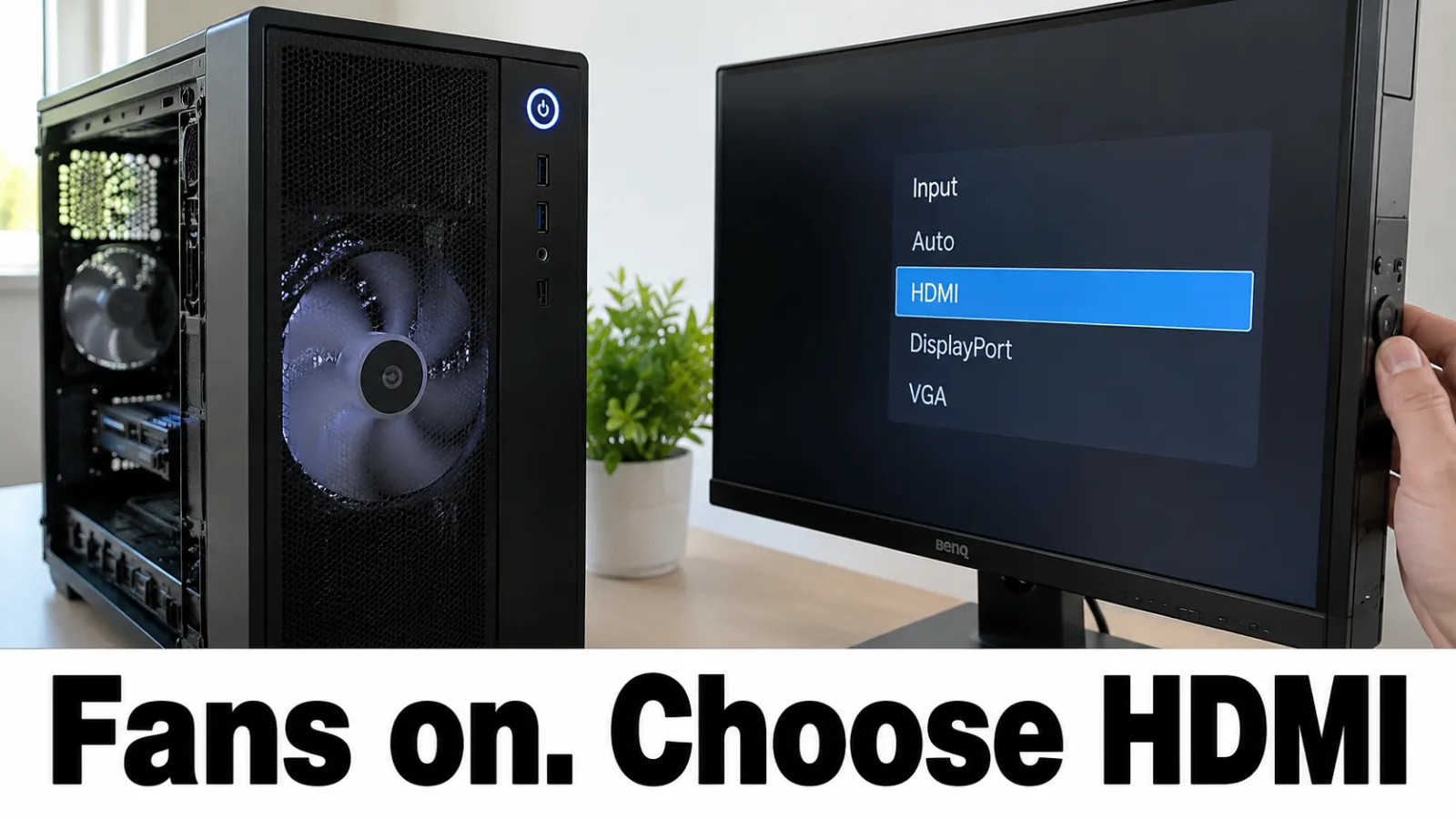
Step 1. Confirm PSU fans and monitor input
Listen for case or GPU fans. Turn the monitor on and pick the same HDMI / DisplayPort / VGA input as your cable. Try a second known-good cable. If the monitor has a built-in self-test with only the power cable attached, use it to prove the panel itself works.
Step 2. Try motherboard video vs GPU port
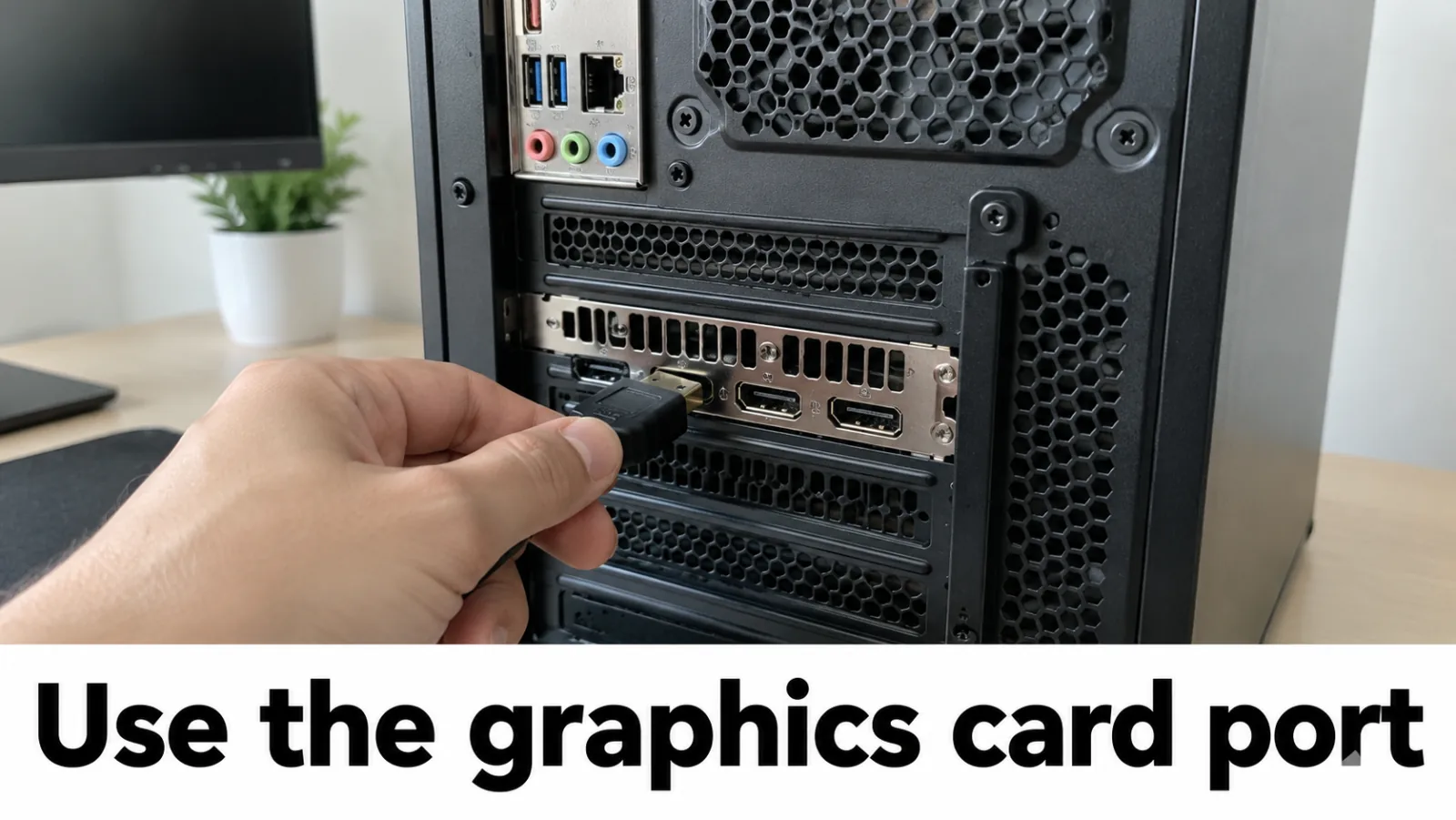
If the CPU has integrated graphics, move the cable to the motherboard I/O ports. If you only have a discrete GPU, seat the cable firmly in that card’s ports — not an empty motherboard HDMI that has no GPU behind it. Wrong port is a common “PC on, no display” miss.
Step 3. Reseat GPU and RAM
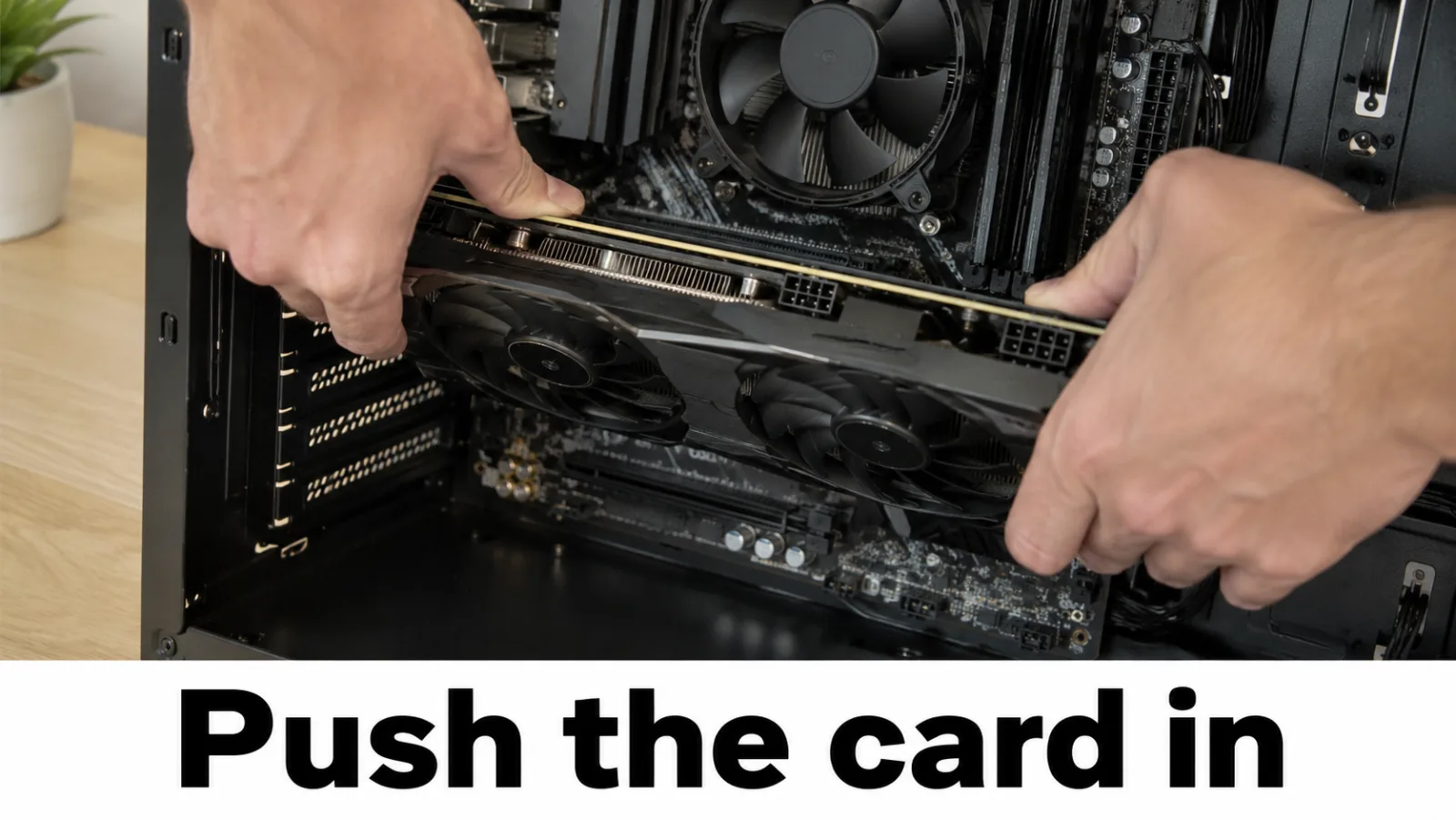
Unplug AC, hold the case power button about 10 seconds, reseat the graphics card (including any 6/8-pin PCIe power) and DIMMs, then retry. Loose GPU power or a half-seated card often looks exactly like “fans spin, no video.”
Step 4. Minimal boot configuration
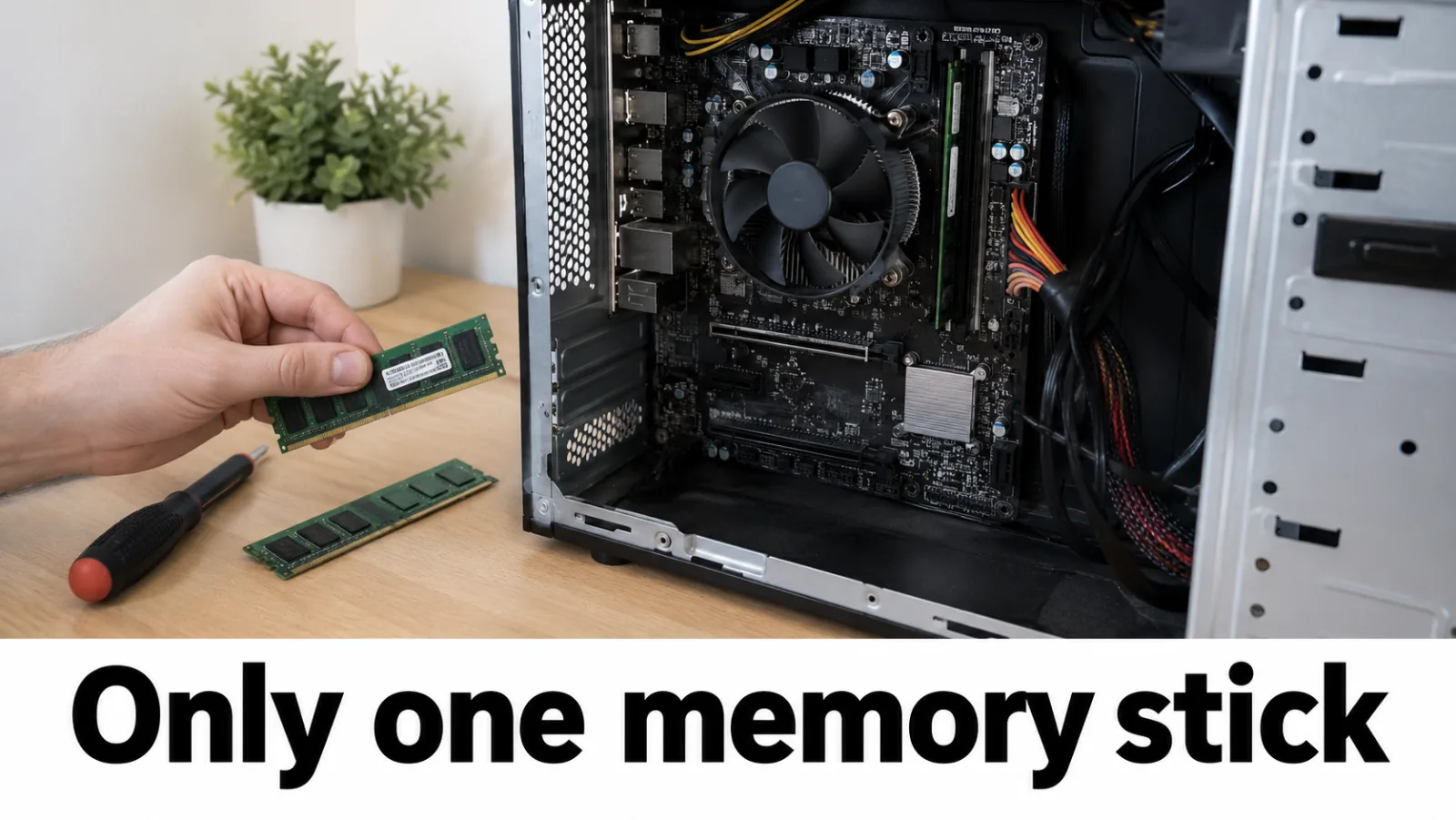
One RAM stick in the primary slot, onboard video or a single GPU, no extra USB devices. Still dark? Read motherboard debug LEDs or beep codes in the OEM manual (Dell and others publish no-POST / no-video trees).
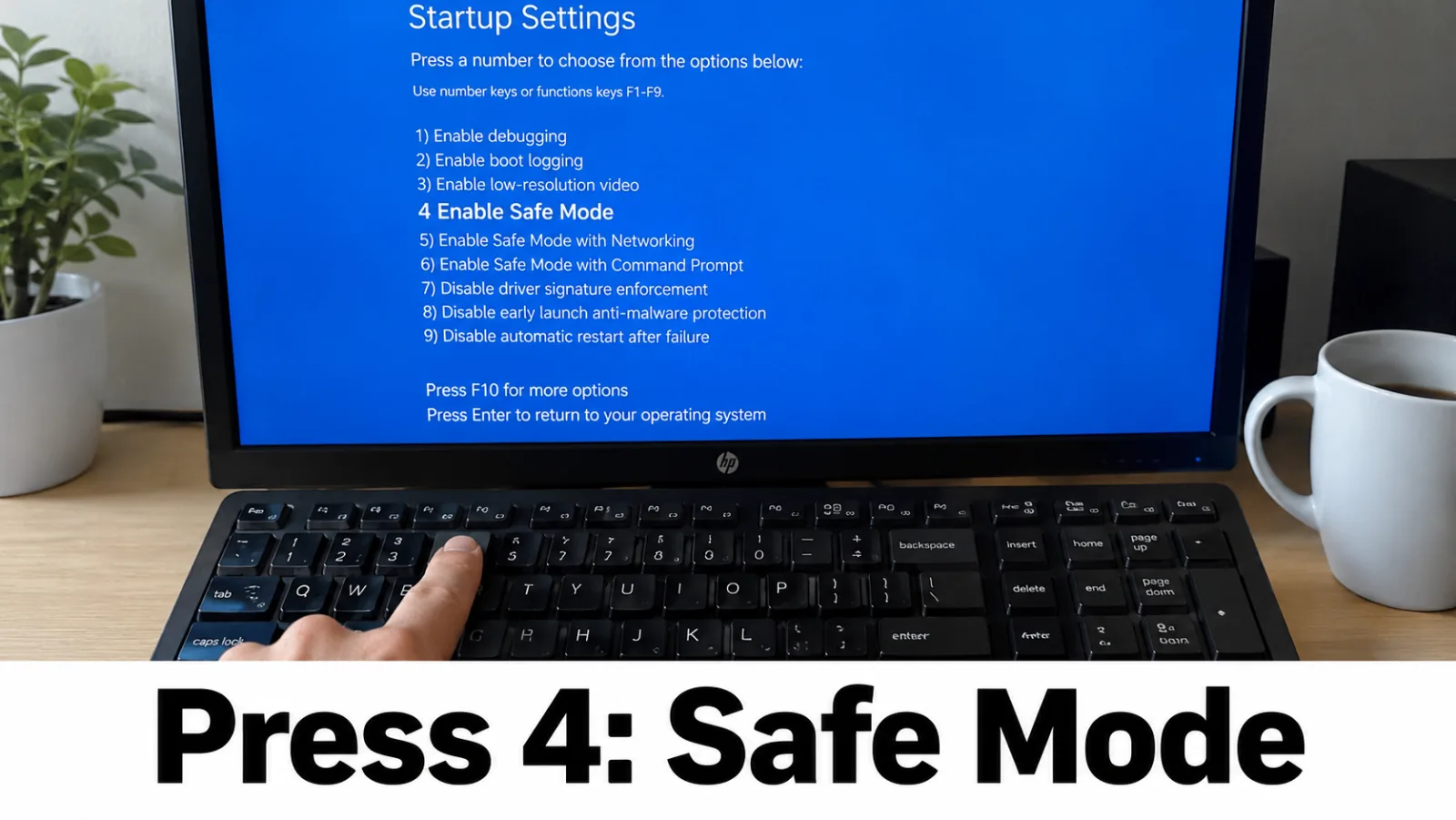
Step 5. Safe Mode and display drivers (only after you have any video)
If you can reach Safe Mode or an intermittent desktop, open Device Manager → Display adapters and
update or roll back
the GPU driver. Do not edit TdrDelay. Prefer Windows Update or
NVIDIA
/
AMD
/
Intel
official pages — not third-party packs.
Do not edit
TdrDelay.
For the recovered-driver dialog, see
display driver stopped responding.
FAQ
CPU is on but no display — same guide?
Yes. If the CPU is on but there is no display, or the PC is not displaying on the monitor, stay on this page. Fans and board lights without a picture use the same checks: monitor input, cable, GPU port, then RAM.
Monitor shows No Signal — is the PC dead?
Not yet. Confirm the monitor works on another machine, swap cables, change the OSD input, and try another video port. See also the HDMI no-signal guide.
How does this relate to the laptop guide?
Same idea: prove the display path first, then memory and GPU. Laptops return to the home diagnosis tree for panel and backlight steps after an external monitor works.
Should I download a DLL or one-click GPU fixer?
No. Use Windows Update or NVIDIA, AMD, or Intel’s official driver pages — or your OEM’s support download for that model. Do not edit TdrDelay.