External monitor test
This is the first cut for laptop no display but power on. Microsoft, Dell, and HP blank-screen flows all use a known-good external display early. The same test covers a black screen when an external monitor works, and a second monitor that is not detected.
Why this test
A blank built-in panel can mean backlight failure, a flexed display cable, projection mode, a hung GPU driver, loose RAM, or a board that never posts video. One cable to a working monitor separates those worlds:
- External shows an image → system video works; focus on the laptop panel, brightness, backlight, or hinge cable.
- External stays dark / no signal → the fault is still on the system side (cable to the monitor, port, Win+P, GPU, memory, or board). The internal LCD is already bypassed, so do not conclude “LCD is broken.”
Test steps
Step 1. Power the monitor and pick the input
Turn the monitor on and confirm its power LED. Open the monitor’s input/source menu and select HDMI, DisplayPort, USB-C DisplayPort Alt Mode, or VGA to match the cable. A powered monitor on the wrong input looks like a dead laptop.
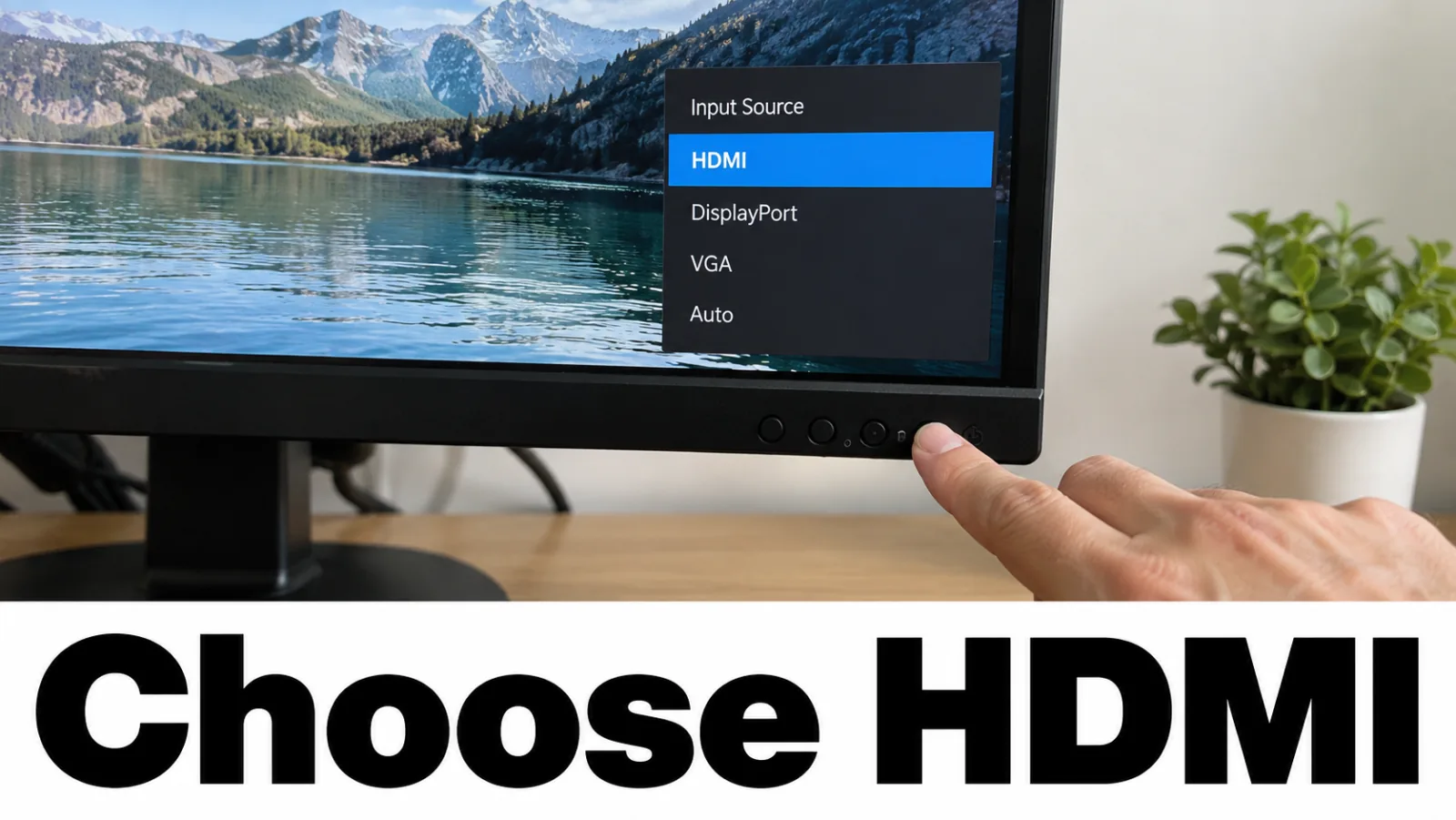
Step 2. Connect a known-good cable
Seat the cable fully on both ends. Microsoft’s external-monitor guide recommends removing docks, dongles, and splitters for the first test and using a direct cable. Prefer a cable that already works between another PC and this monitor.
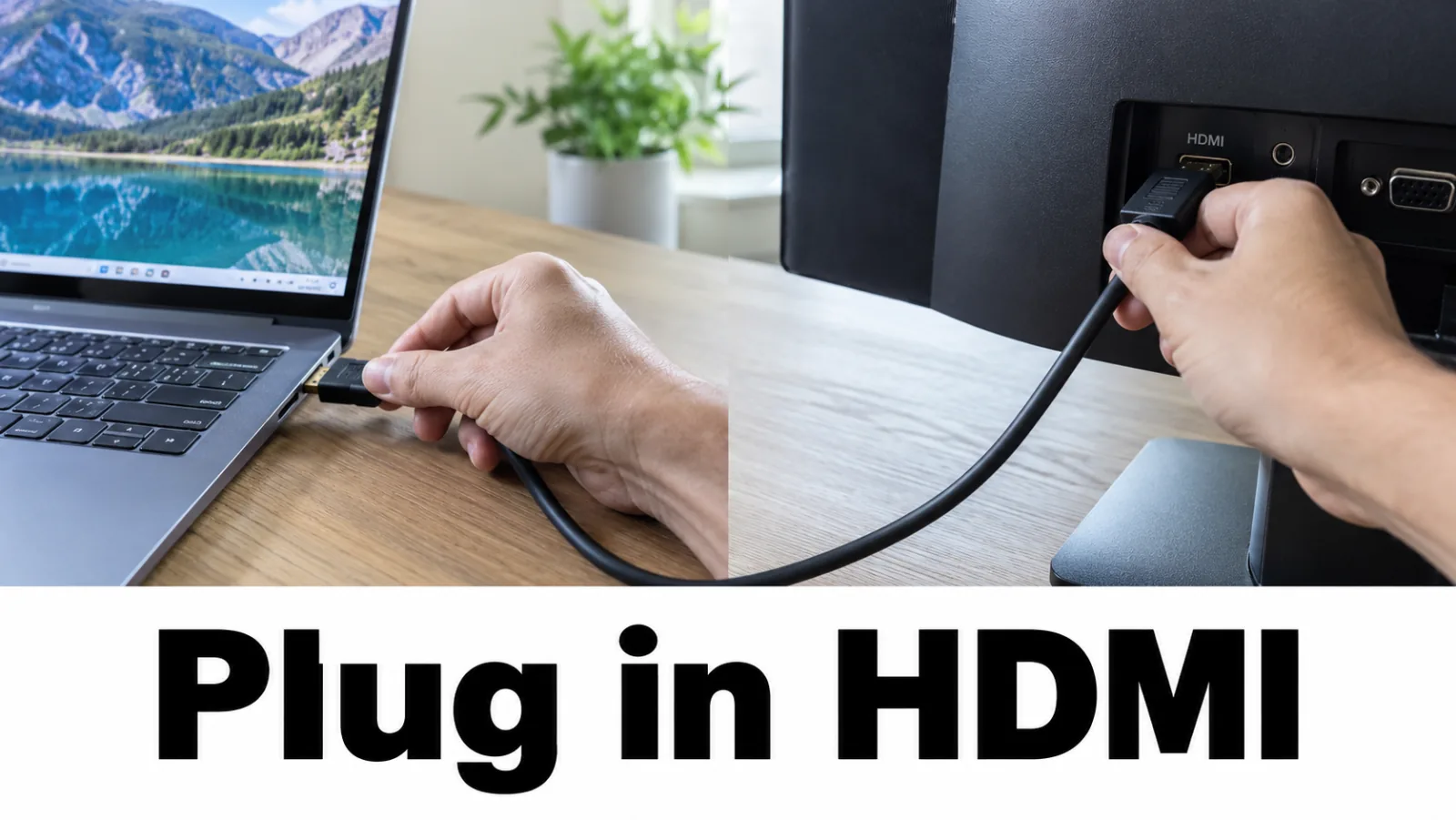
Step 3. Press Windows + P
Press Windows + P. Choose Extend, wait a few seconds, then try Duplicate, then Second screen only. If you cannot see the flyout, press the keys blindly and wait — Windows may still switch outputs. Dell and Microsoft both treat Win+P as the early dual-display step.
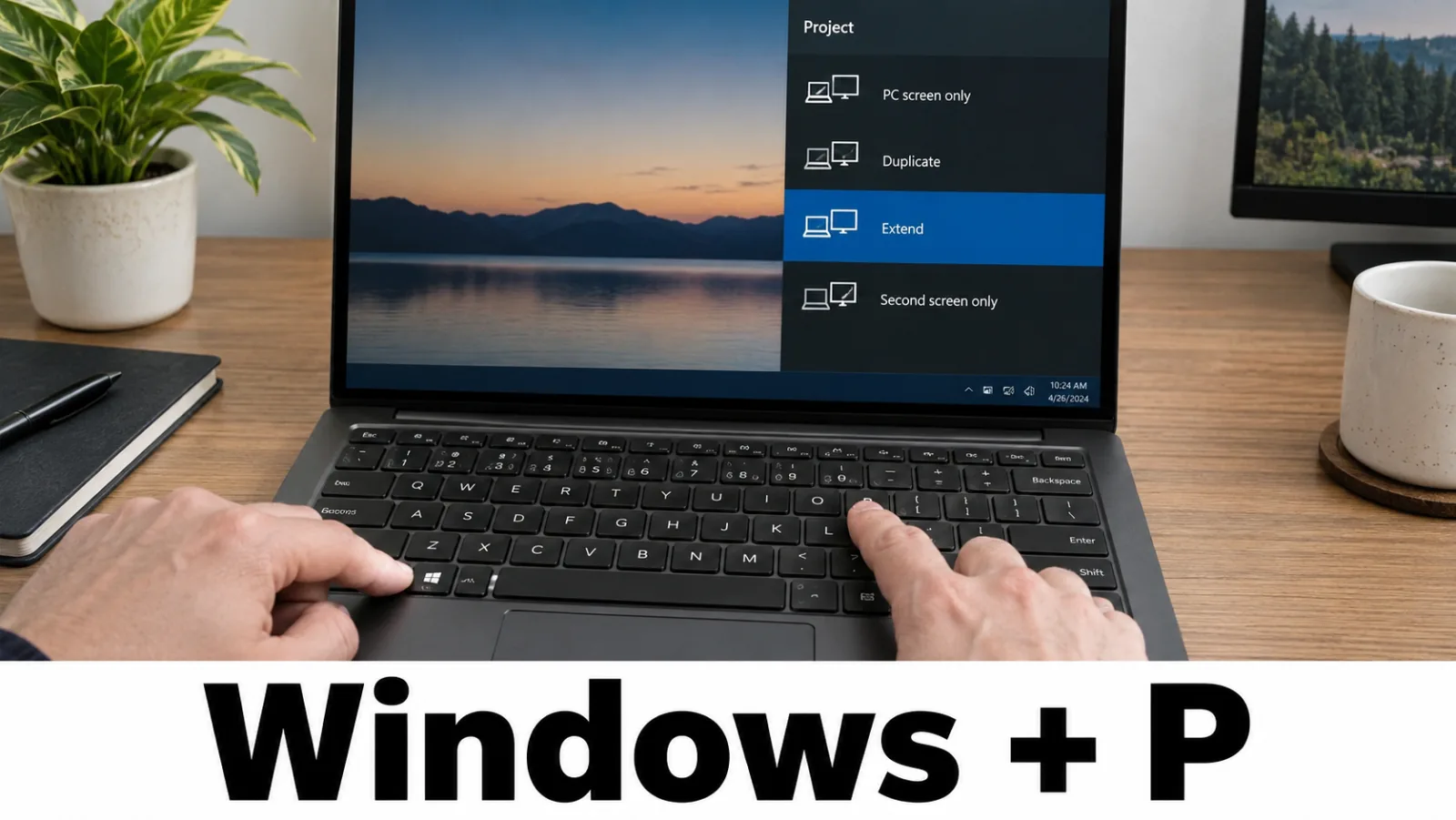
Step 4. Detect displays or swap ports
If any screen is usable, open Settings → System → Display → Detect. Swap to another video port on the laptop and try a second cable. Still no signal on HDMI? Continue on HDMI no signal before opening the chassis.
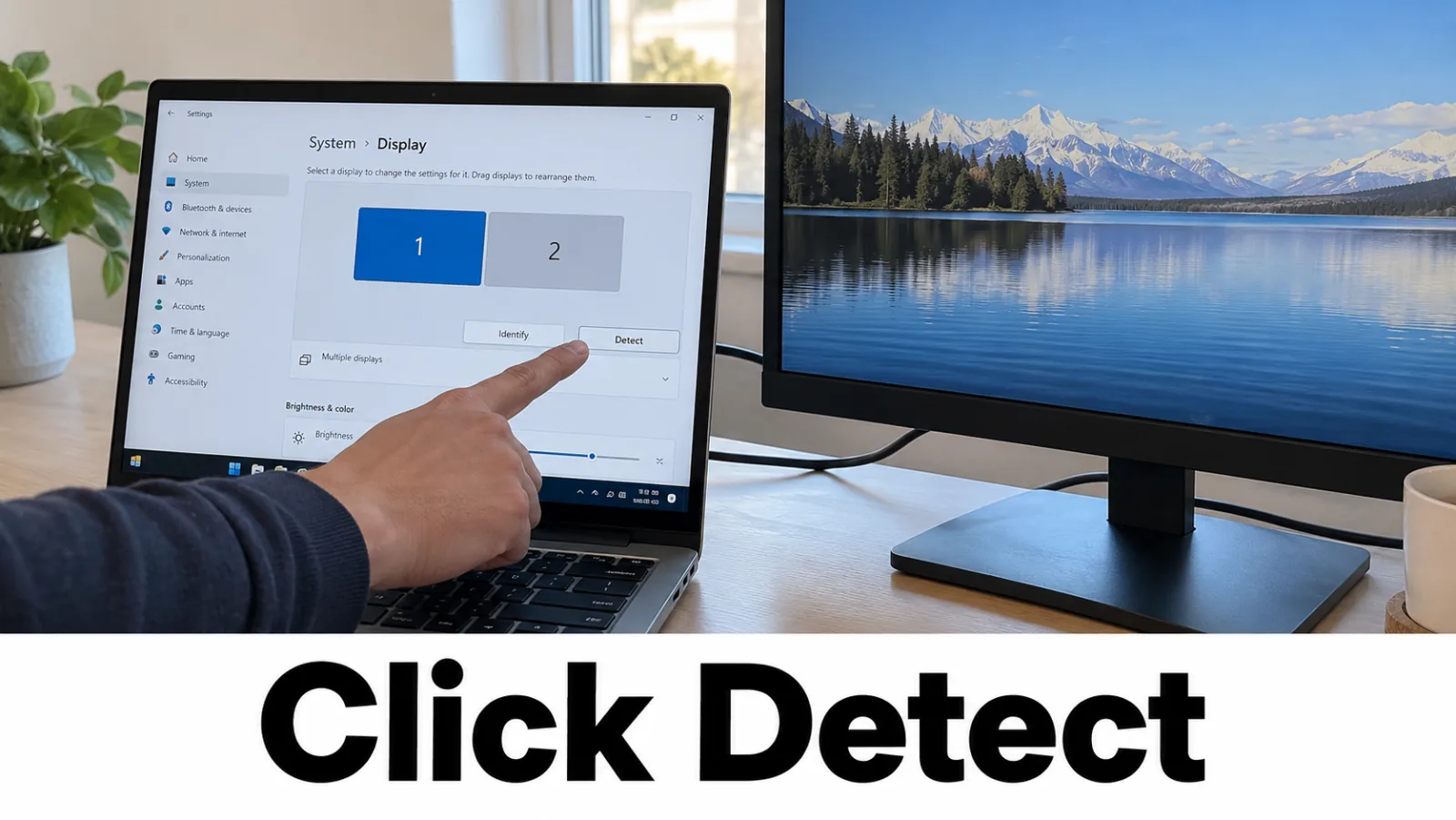
Step 5. Record which branch you are on
Write down: did the external show BIOS/logo, Windows, or any image at all? Did the laptop ever beep or show diagnostic LEDs? Then open the matching section below — do not skip the branch.
External works
Optional software pass while the external is usable: Settings → System → Display brightness; Windows Update or OEM graphics drivers only; Device Manager → Display adapters → Roll back if the blank panel started after a driver change.
External stays dark
If the monitor OSD shows “no signal,” treat ports and cables first (HDMI no signal). If Windows briefly flashes then recovers with a driver message, use the TDR guide — do not edit registry TDR timeouts.
FAQ
Black screen but external monitor works — what next?
System video is reaching the external display, so the GPU and OS path are likely healthy. Continue with brightness and backlight, then the display-cable guide. Do not treat this as a dead motherboard.
External stays dark — is my laptop LCD broken?
No. An external display already bypasses the built-in panel. No image on the external means cable, port, projection mode, GPU, RAM, or board video — not “LCD failed.”
Second monitor not detected?
Confirm Win+P is not stuck on PC screen only, click Detect in Display settings, and test with a direct cable before docks or adapters.
Should I download a driver pack from a random site?
No. Use Windows Update or your OEM’s official driver download. Do not use third-party “one-click” driver or DLL fix tools.