Lenovo laptop no display but power on
Brand layer on the shared laptop no display but power on tree. Start with Lenovo’s power reset and the same external monitor test before any panel conclusions.
What this page covers
Lenovo steps
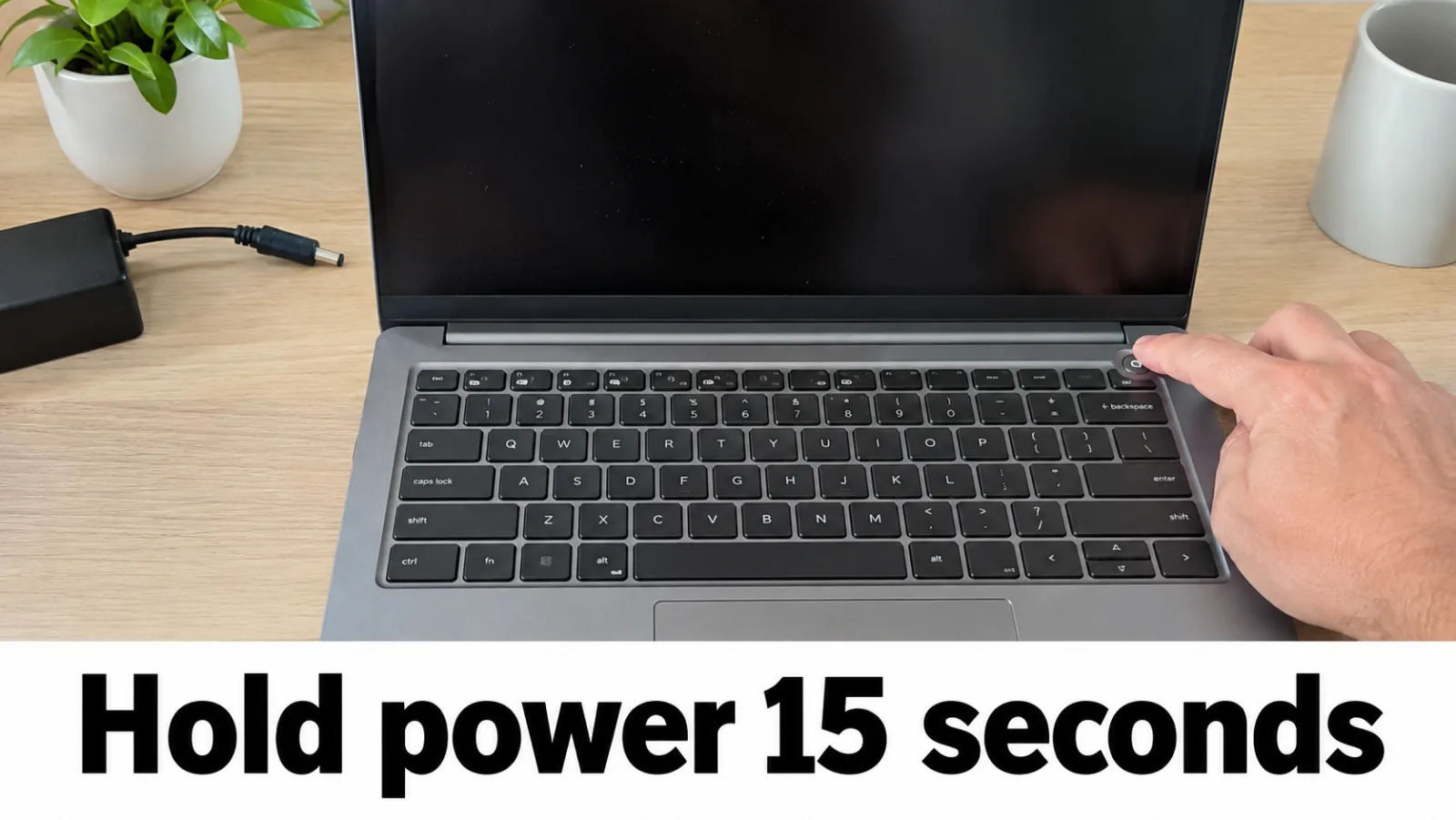
Step 1. Remove extras and hold power more than 15 seconds
Disconnect docks, USB drives, and external monitors for this reset. Removable battery: remove AC and battery. Non-removable: remove AC only. Press and hold the power button more than 15 seconds to reset, re-attach power (and battery if removed), then press power once.
Step 2. External monitor first cut (Win+P / Fn)
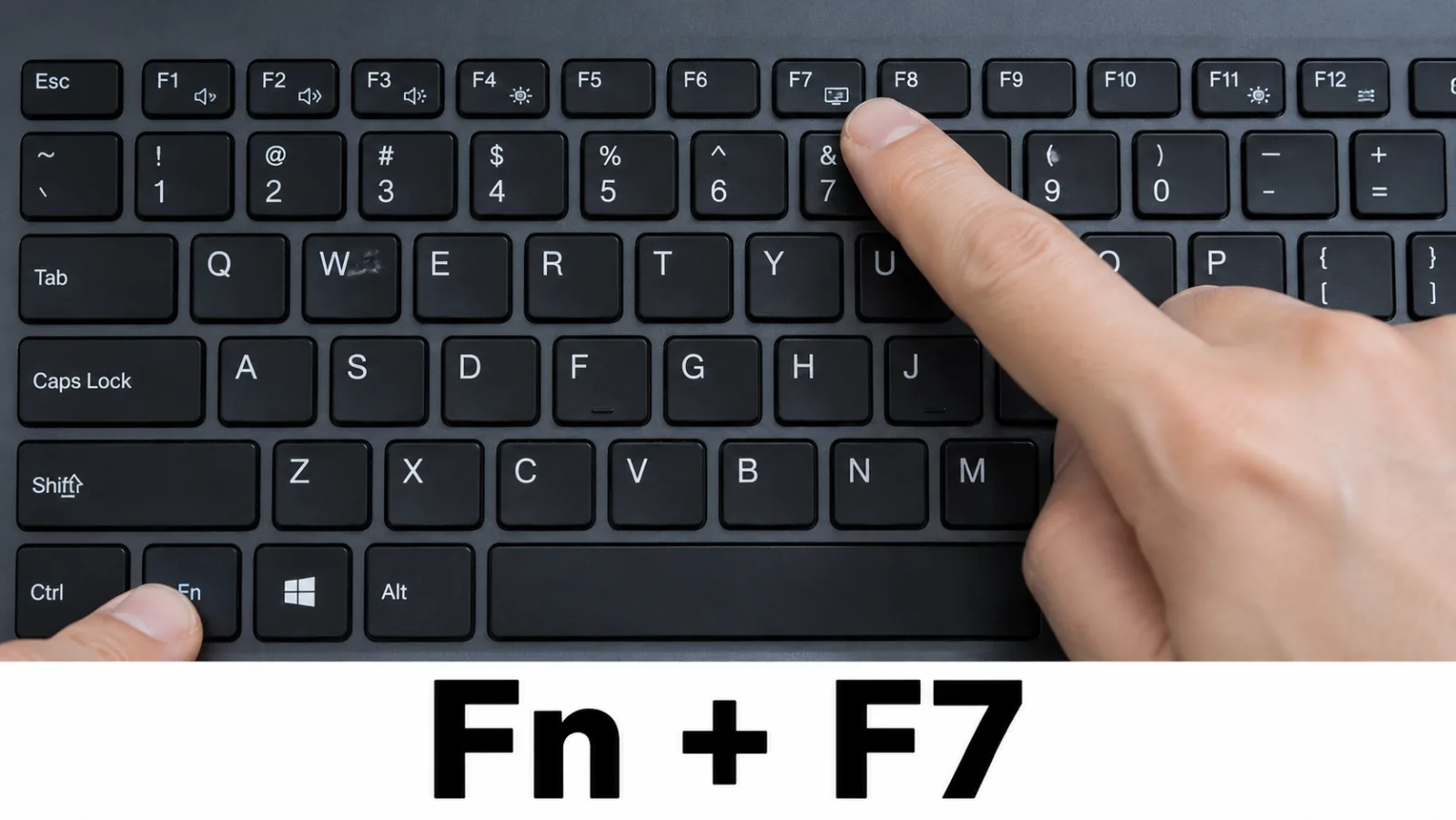
Connect a known-good external monitor. Press Windows + P and choose Duplicate, Extend, or Second screen only. On many ThinkPads also try Fn + F7 (monitor icon) — check your machine-type manual for the exact key.
- External works → brightness / backlight / panel path ( backlight guide).
- External dark → external monitor test (not automatic LCD failure).
Step 3. Black screen with cursor only
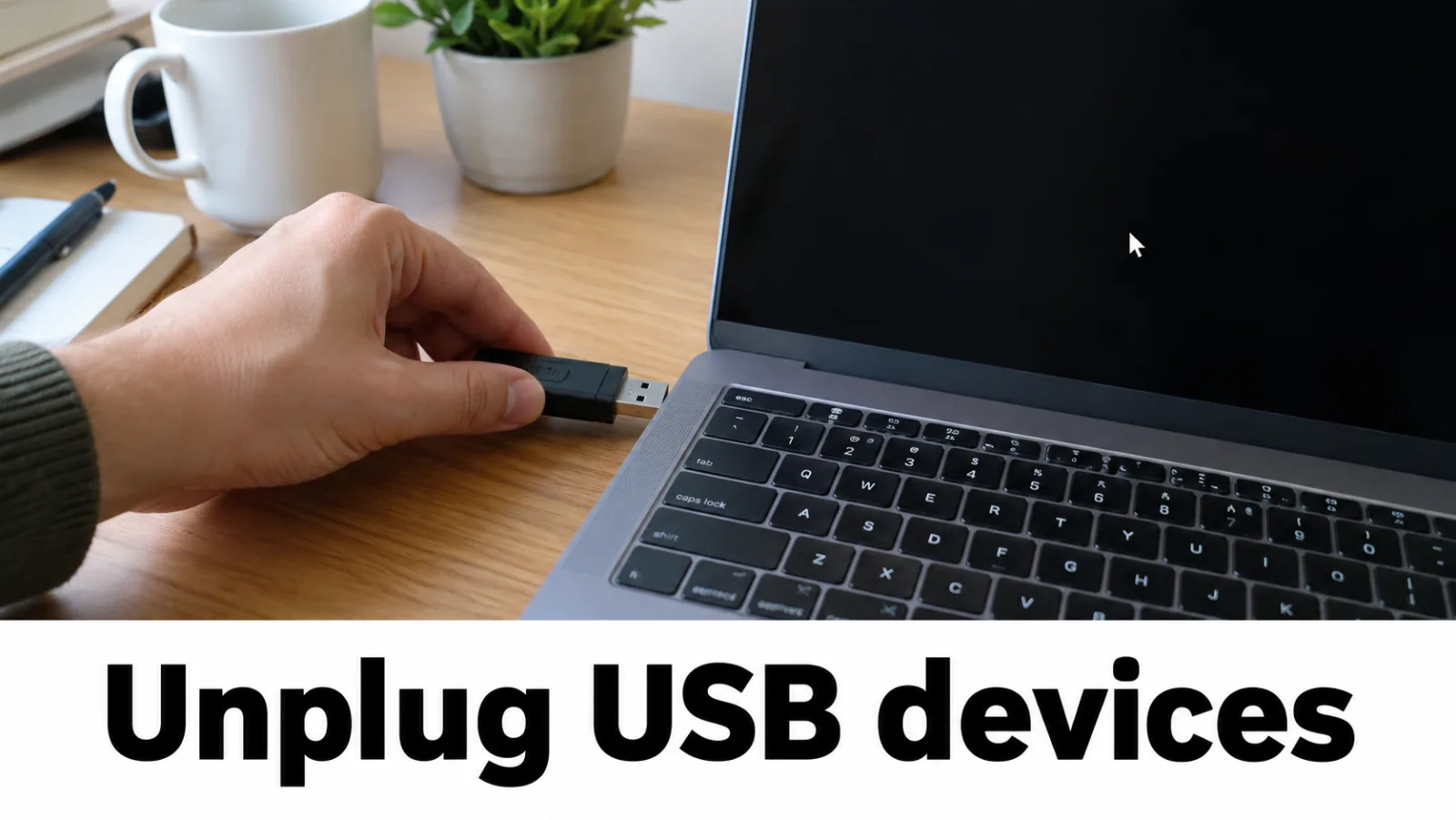
Power off, disconnect USB devices / printers / docks, then power on again. If a cursor returns but the desktop does not, continue with Microsoft blank-screen Explorer / Safe Mode steps from the home tree — still no third-party DLL tools.
Step 4. Drivers only from Lenovo Support
From a working display, open Lenovo Support for your machine type and install the display / graphics package Lenovo lists.
Do not use driver-pack sites or DLL fixers. Do not edit
TdrDelay.
Timeout recovery messaging:
display driver stopped responding.
Step 5. Novo / recovery only when your model documents it
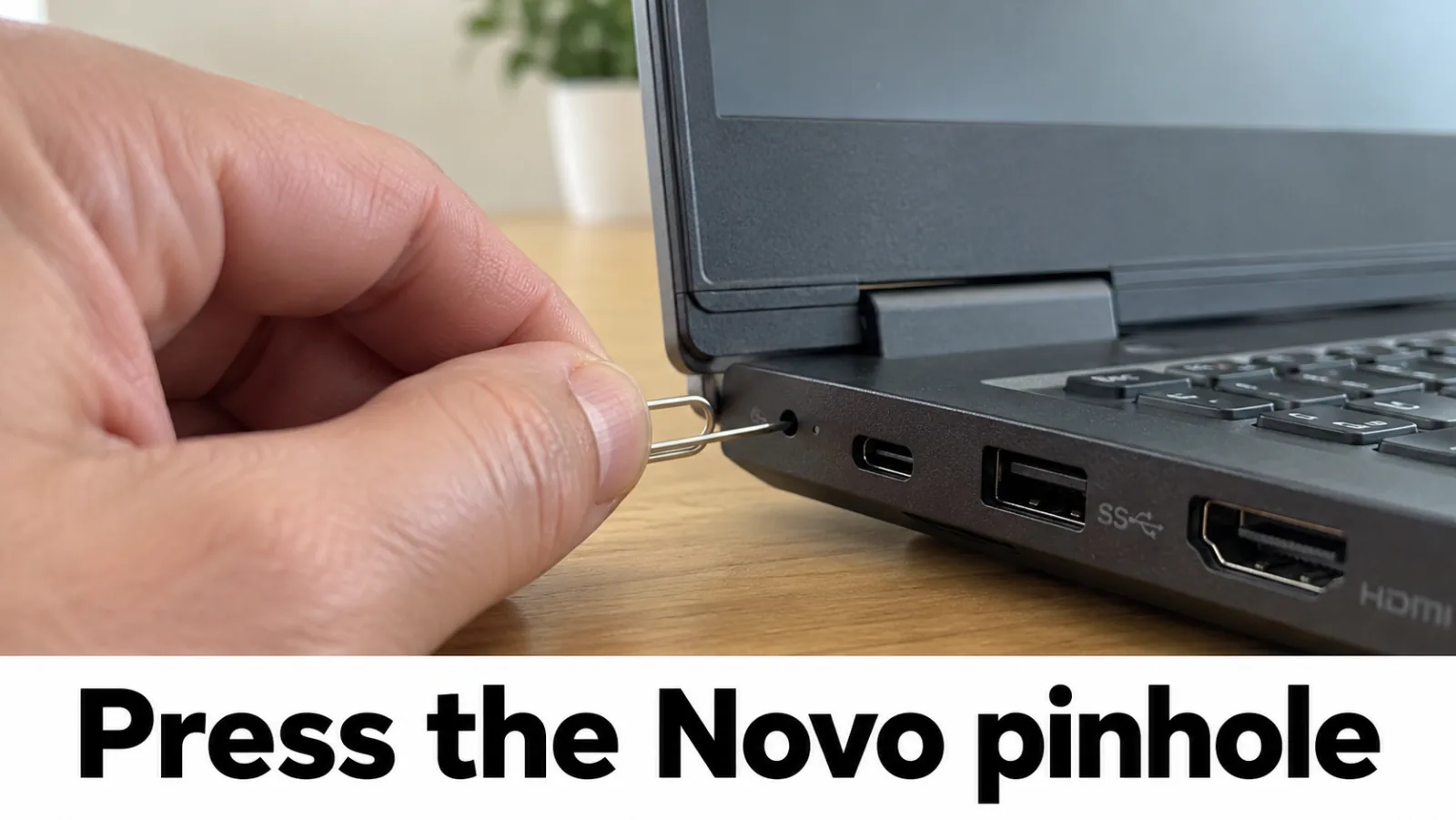
Some IdeaPads expose a Novo pinhole for firmware / recovery menus when the OS display path fails. Use Lenovo’s guide for your exact machine type. Follow the official troubleshooting flow linked below for menu clicks on your model.
External connected, lid blank
ThinkPad documentation covers cases where connecting an external monitor leaves the built-in panel blank. Treat that as a projection / lid / driver branch after you confirm the external actually shows video: cycle Windows + P and the Fn display key, update Lenovo graphics packages, then see Lenovo’s article ht509459 for model-specific notes. Follow that Lenovo article for your model.
Official Lenovo links
FAQ
External dark — is the Lenovo panel dead?
No. External dark bypasses the lid panel. Fix cable, port, Win+P / Fn projection, GPU, and POST first via the external monitor test.
IdeaPad vs ThinkPad projection key?
ThinkPad often uses Fn+F7; always confirm in your user guide. Windows+P works across Windows 10/11 regardless of OEM key.
Where are the exact Lenovo support menu clicks?
Lenovo’s online troubleshooting changes by model. Use the official links on this page. The steps written here are the ones Lenovo documents in plain articles: power reset, Win+P or Fn projection, and driver downloads.
Hold D for BIST on Lenovo?
No. That is Dell’s LCD BIST. Lenovo users follow Lenovo panel/display docs and the site backlight guide after an external works.