Laptop no display but power on
When a laptop has power but no display — the power light is on, the laptop is turning on, or the screen won't turn on while fans or keyboard lights still respond — treat it as a decision tree, not a random parts swap. The first cut is simple: connect an external monitor and note whether that screen shows an image.
1. Confirm this is “power on, no display”
Check for power signs: chassis or charger LED, fan spin, Caps Lock or keyboard lights. Microsoft’s blank-screen guide also starts with power and a connected external display when you use one.
- No LED, no fan → leave this tree; won't-turn-on triage.
- LED or fans respond, screen black → stay here and run the external first cut.
- Black screen with a visible mouse cursor → often software (shell or profile); still try external + driver reset, then Safe Mode.
2. First cut: external monitor
3. Diagnosis steps
Step 1. Confirm power signs
Confirm the machine has power: LED on the chassis or charging brick, fans spinning, keyboard lights. If nothing lights up, leave this tree and use laptop won't turn on triage.

Step 2. Connect a known-good external monitor
Connect HDMI, DisplayPort, USB-C DisplayPort Alt Mode, or VGA to a working display. Unplug docks, dongles, and unused USB devices for this test. Full walkthrough: external monitor test. If the TV or monitor shows “no signal,” also see HDMI no signal.
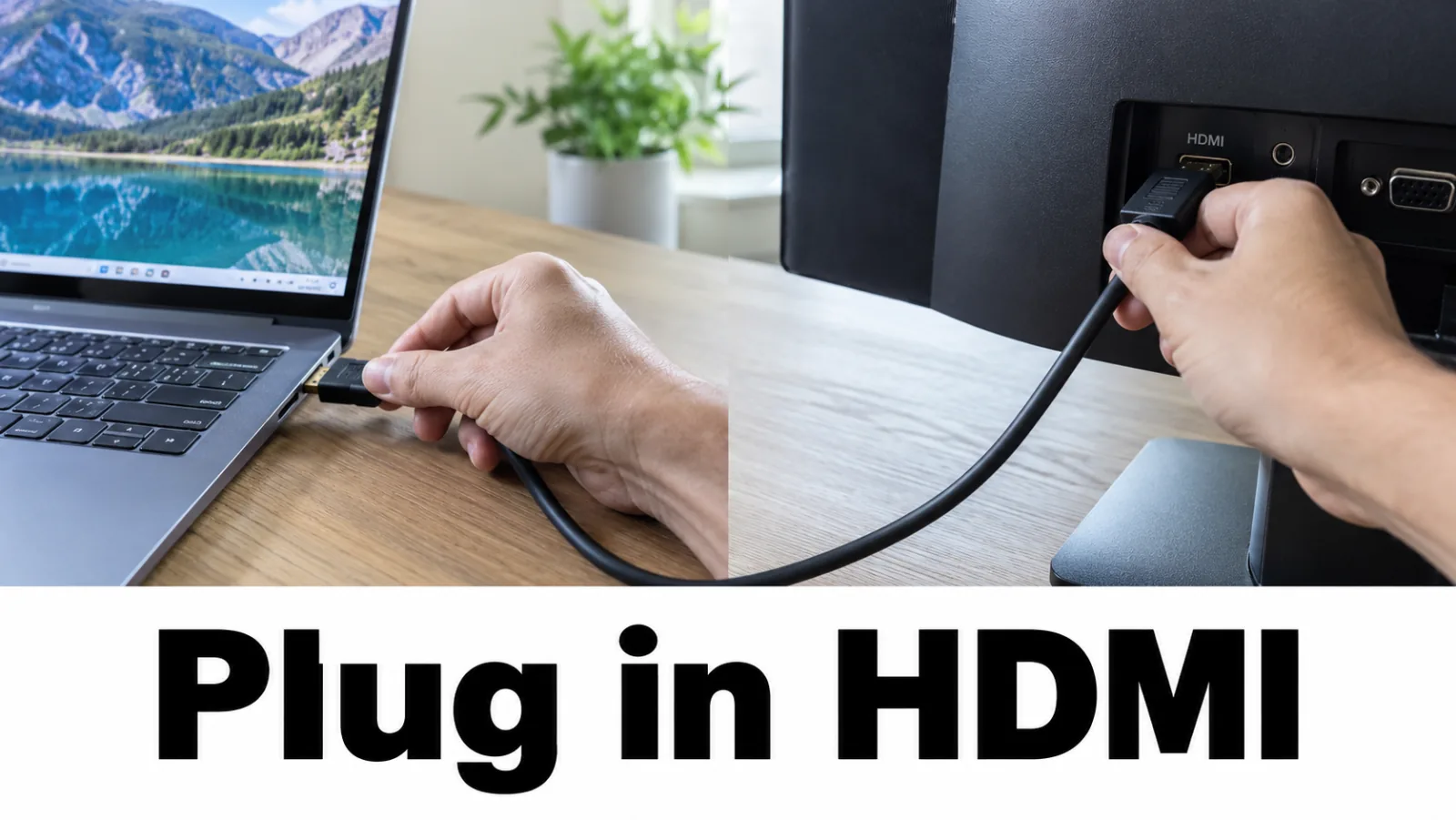
Step 3. Branch on the external result
External shows Windows or BIOS → keep the internal panel path: brightness keys, then backlight not working, then display cable.
External stays dark → continue with projection mode, driver reset, then RAM reseat and HDMI/port checks. Do not conclude the laptop LCD failed from this result alone.
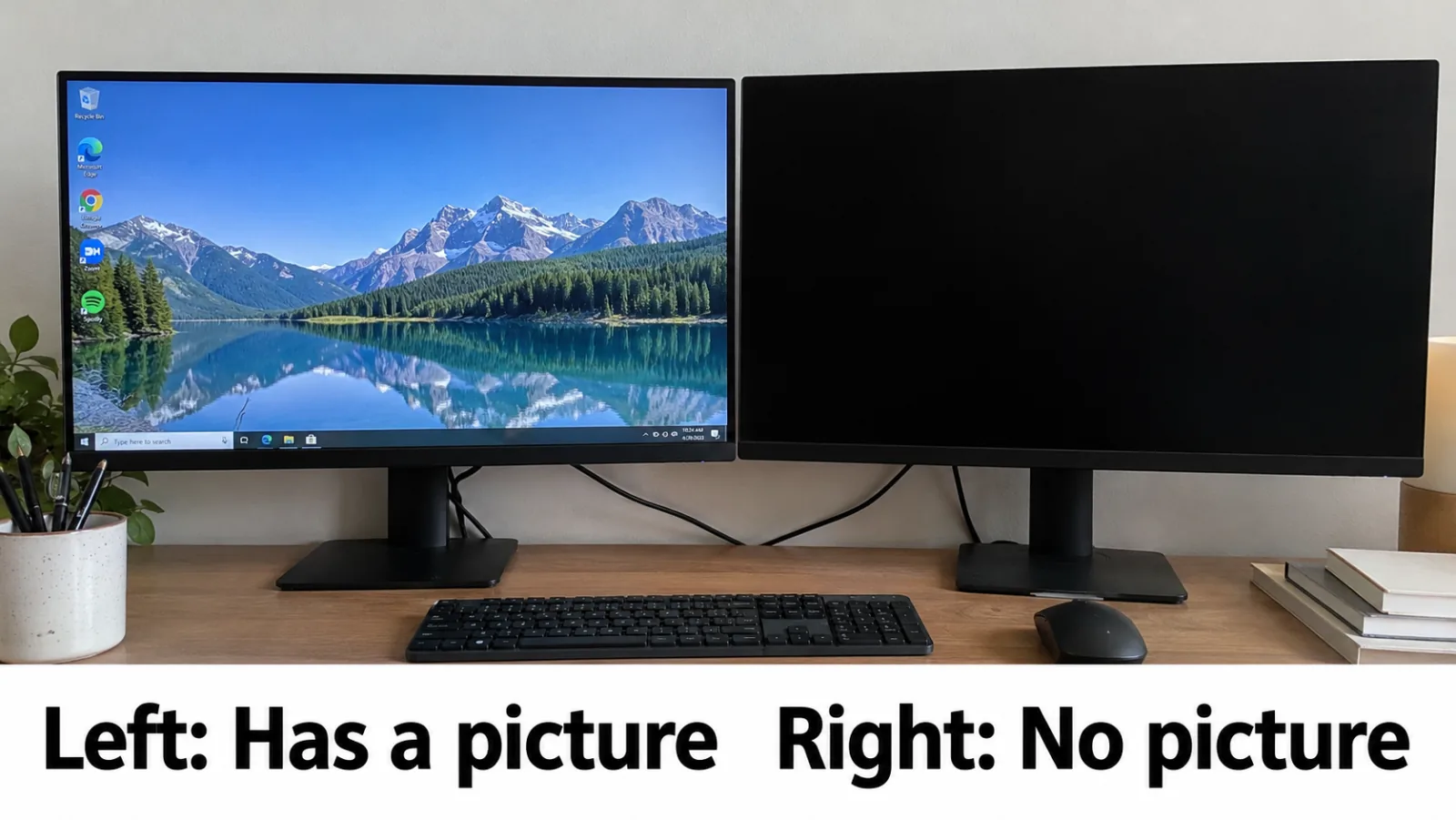
Step 4. Cycle Windows projection mode (Win+P)
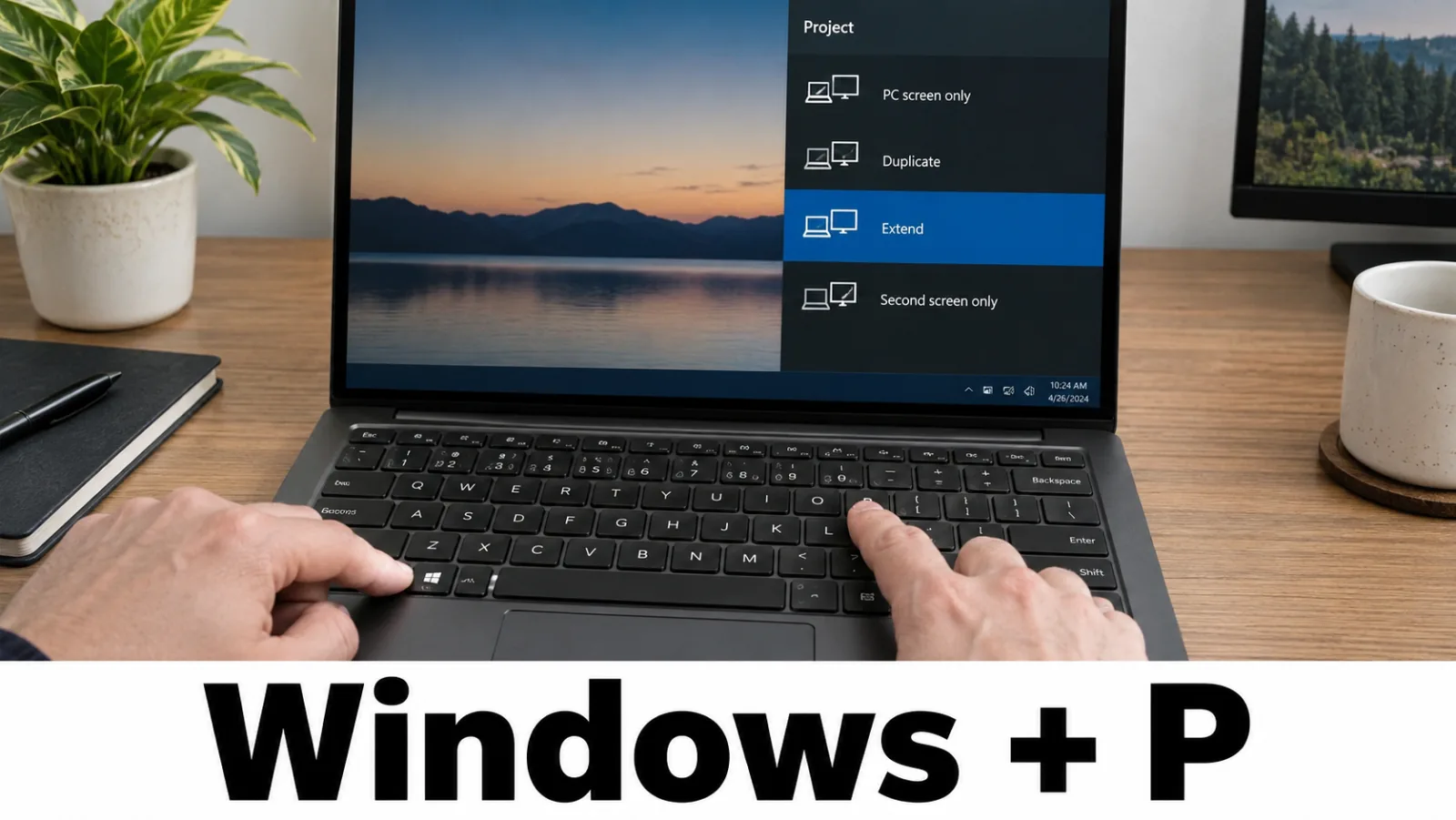
Blindly press Windows + P, then P or arrow keys and Enter to try Duplicate, Extend, and Second screen only. Microsoft documents Win+P for blank screens and external-monitor setup.
Step 5. Reset the graphics driver
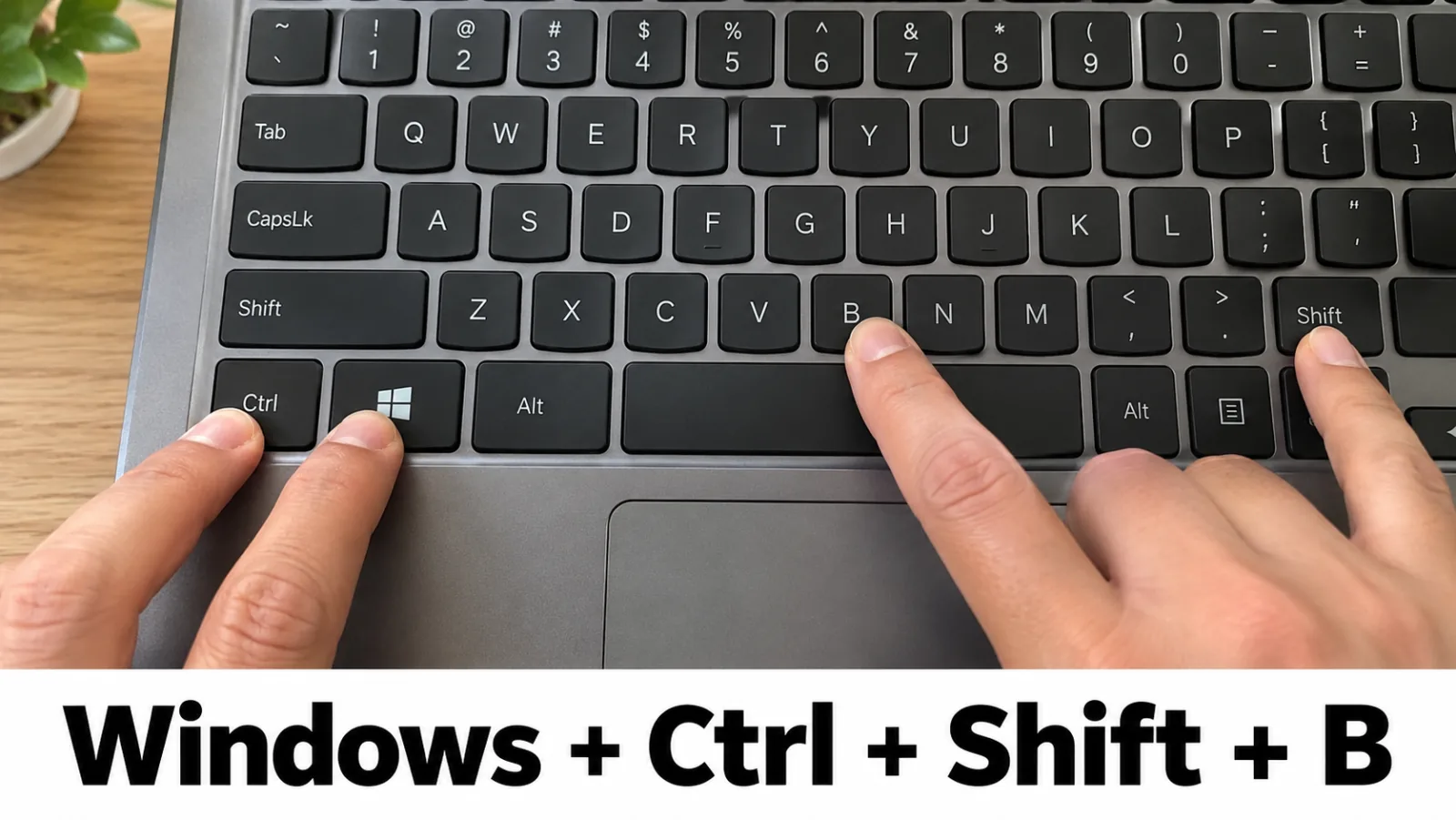
Press Windows + Ctrl + Shift + B. If the screen flashes or you hear a beep, wait a few seconds. Still dark? Force a full shutdown (hold power about 20 seconds), then try Safe Mode and update or roll back the display adapter driver in Device Manager.
If Windows later shows “Display driver stopped responding and has recovered,” use the TDR guide. Do not edit TdrDelay in the registry.
Step 6. Continue with the matching fix guide
Next stops: RAM reseat, backlight not working, display cable, HDMI no signal, or brand pages for HP, Dell, Lenovo.
4. Symptom map
5. FAQ
Why start with an external monitor?
An external display separates a laptop-panel problem from a no-video-at-all problem. Microsoft blank-screen and external-monitor guides treat cable and external checks as early steps. OEM guides (HP, Dell) use the same first cut.
External monitor stays dark — is my laptop LCD broken?
No. The external display bypasses the built-in panel. If both stay dark, troubleshoot cables, ports, Win+P projection mode, GPU drivers, RAM, or board video — not the laptop LCD alone.
Power LED is on but the screen is black — is Windows running?
Often yes. Listen for fans, try Caps Lock, and try Windows + Ctrl + Shift + B. If an external monitor works, Windows may already be up with a dark internal panel.
Is editing TdrDelay in the registry a valid fix?
No. Do not edit TdrDelay. If you see “Display driver stopped responding and has recovered,” follow the TDR guide: update or roll back the GPU driver from Windows Update or your OEM.
My laptop will not turn on at all.
Use the won't-turn-on triage page. If there is no LED and no fan, stay on power troubleshooting. If LEDs or fans respond, return to this diagnosis tree.
Laptop is turning on but no display — or the screen won't turn on. Same steps?
Yes, if a power light, fan, or keyboard light still responds. A laptop that is turning on but has no display, and a screen that won't turn on while the machine still has power, both use this diagnosis. If nothing lights and no fan spins, use the won't-turn-on triage instead.
Official starting points (Microsoft Support): Troubleshooting blank screens in Windows and Troubleshoot external monitor connections. Brand-specific Fn keys and downloads live on the HP, Dell, and Lenovo pages.