Monitor out of range
When the monitor OSD shows Out of range, Outside supported range, or similar wording, the scaler received a signal whose resolution or refresh rate exceeds what it accepts. Sibling guide: monitor input not supported. For a blank panel with No signal, use HDMI no signal.
When to use this page
- The external monitor flashes Out of range / frequency out of range after a resolution, refresh, or driver change.
- You can hear Windows (startup sound, fans) but cannot see enough of the desktop to open Settings.
- Input not supported wording → prefer the input not supported page first; the steps overlap on purpose.
Steps
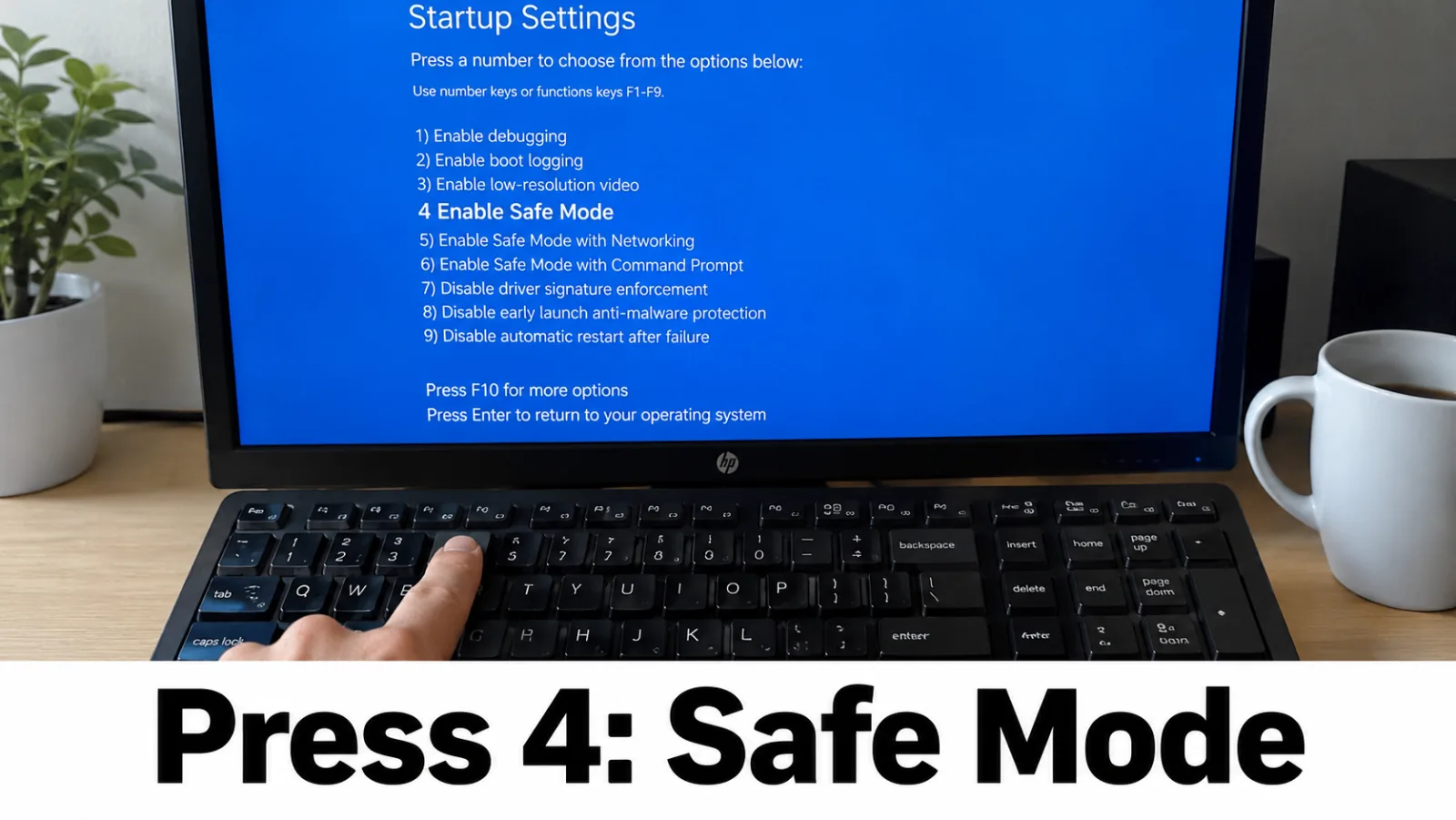
Step 1. Enter Safe Mode to regain a picture
Blind power cycles alone rarely clear an unsupported mode. Boot into Windows Recovery → Troubleshoot → Advanced options → Startup Settings → Restart, then choose Safe Mode or Enable low-resolution video. Once you can see the desktop, continue with Display settings. External connection overview: Troubleshoot external monitor connections in Windows.
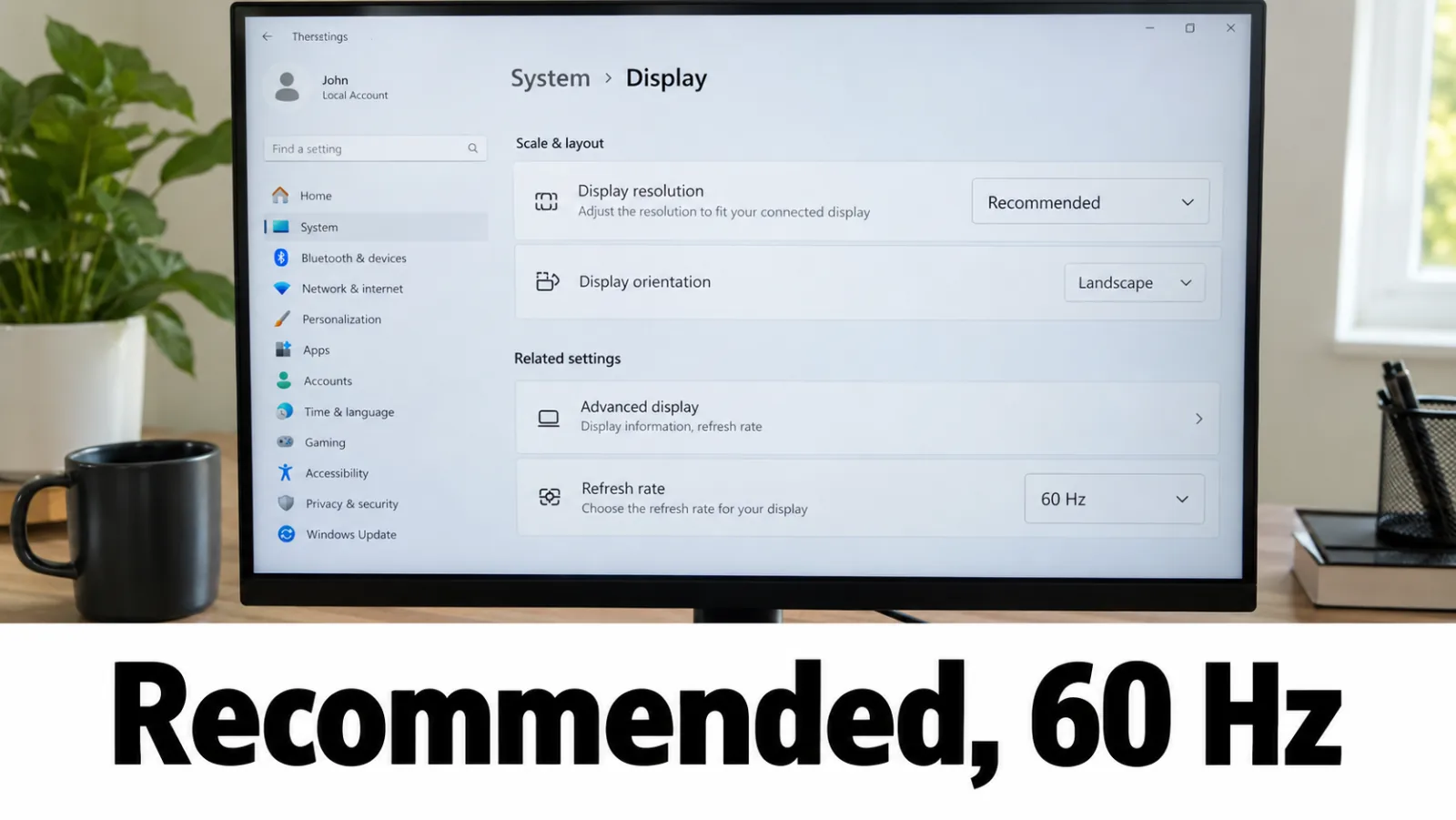
Step 2. Set Recommended resolution and 60 Hz refresh
Open Settings → System → Display, select the external monitor, and choose Recommended resolution ( Change your screen resolution and layout in Windows ). Then open Advanced display and set Refresh rate to 60 Hz or another value listed as supported ( Change the refresh rate on your monitor in Windows ).
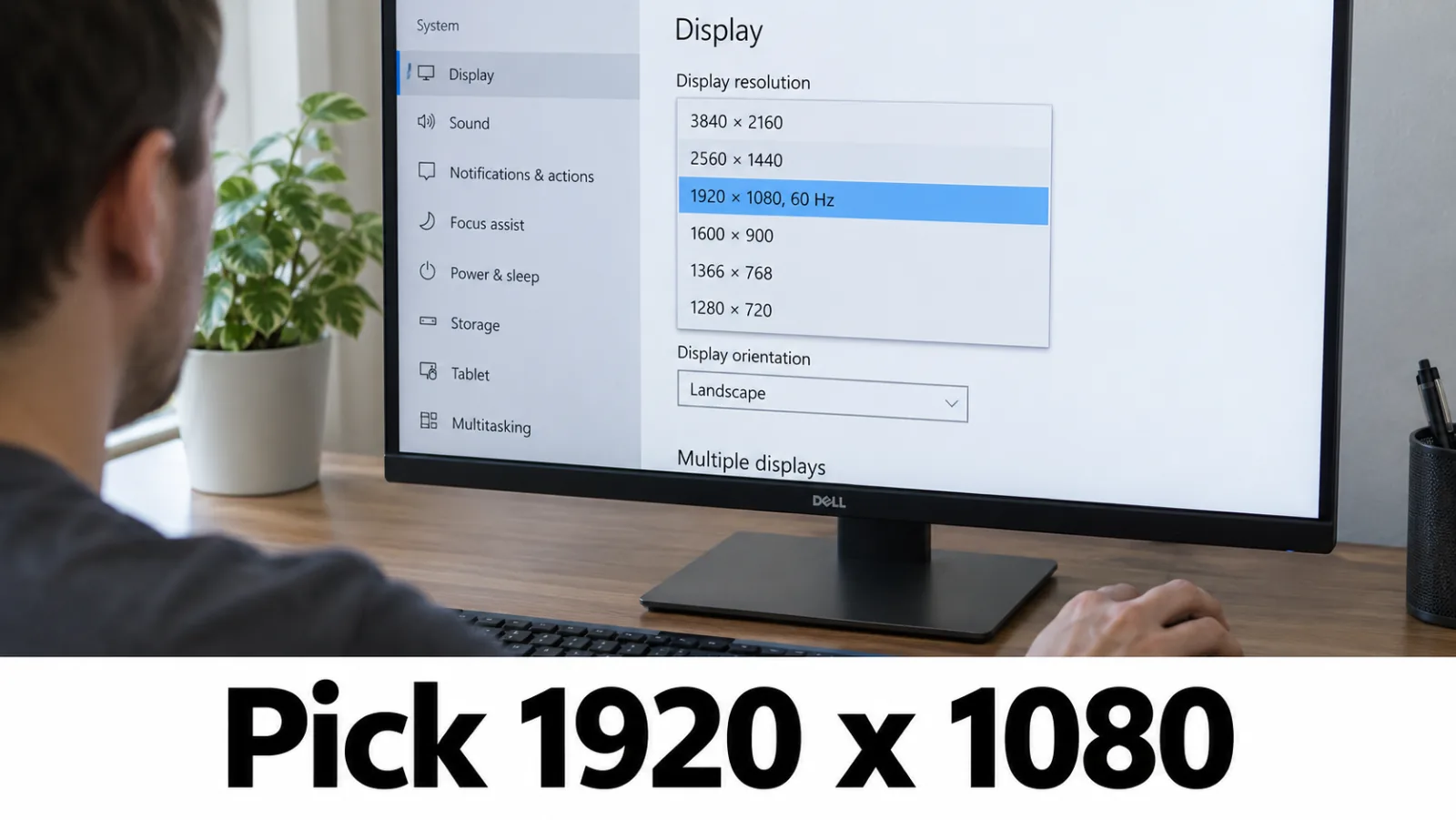
Step 3. Step down carefully with List all modes
If Recommended still triggers Out of range, open Advanced display → Display adapter properties → List All Modes and pick a lower resolution and refresh pair (for example 1280×720 at 60 Hz). Apply, confirm the OSD clears, then work upward slowly toward Recommended.
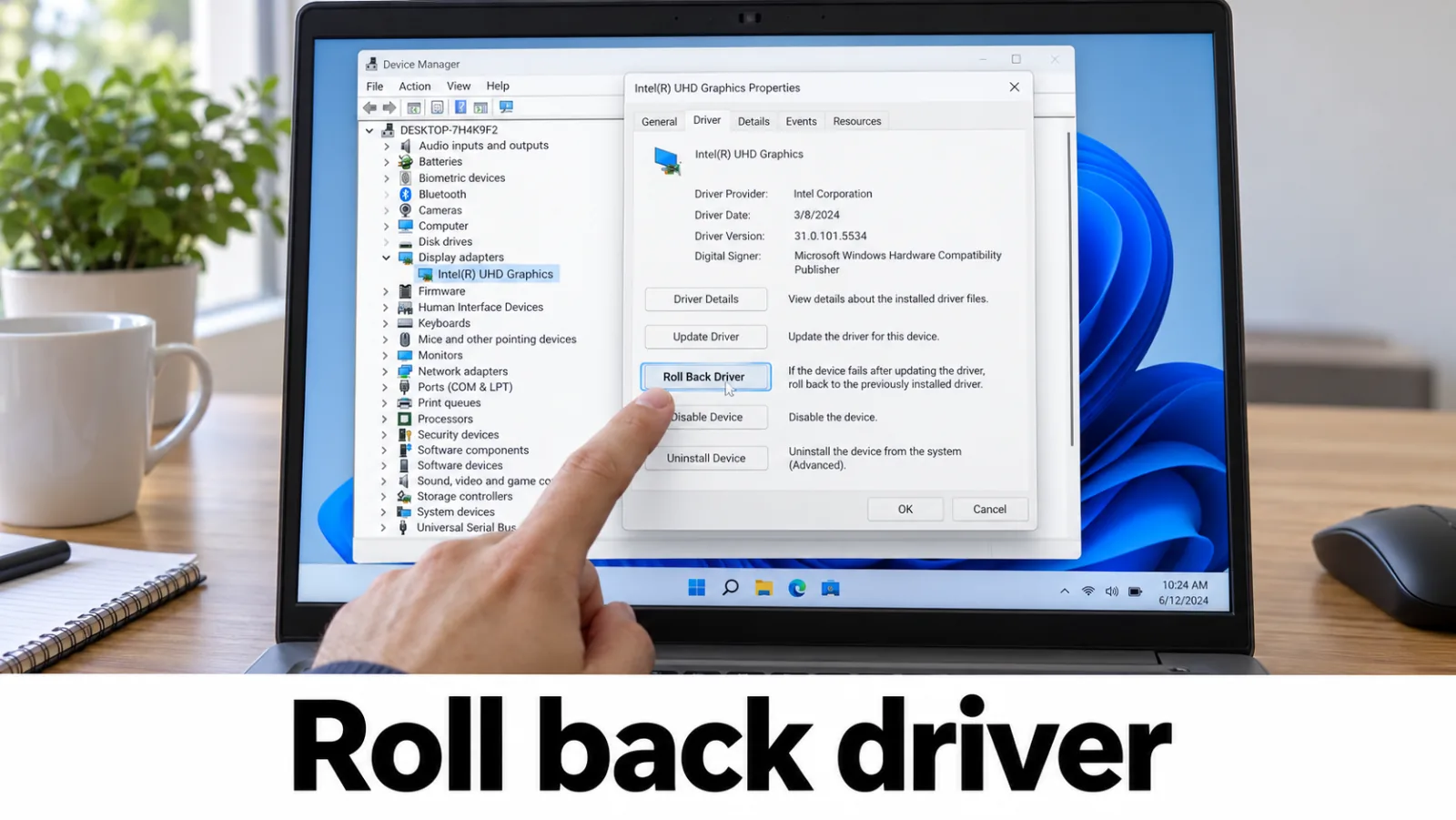
Step 4. Roll back a recent GPU driver
Device Manager → Display adapters → Properties → Driver → Roll Back Driver when available. Otherwise update from Windows Update optional drivers, or the official vendor pages only: NVIDIA, AMD, Intel. Do not use third-party driver packs, DLL fixers, or “driver booster” tools. Repeated recoveries after a flash of black may also be TDR — fix the driver there without editing registry timeouts.
Step 5. Check adapters and cable bandwidth
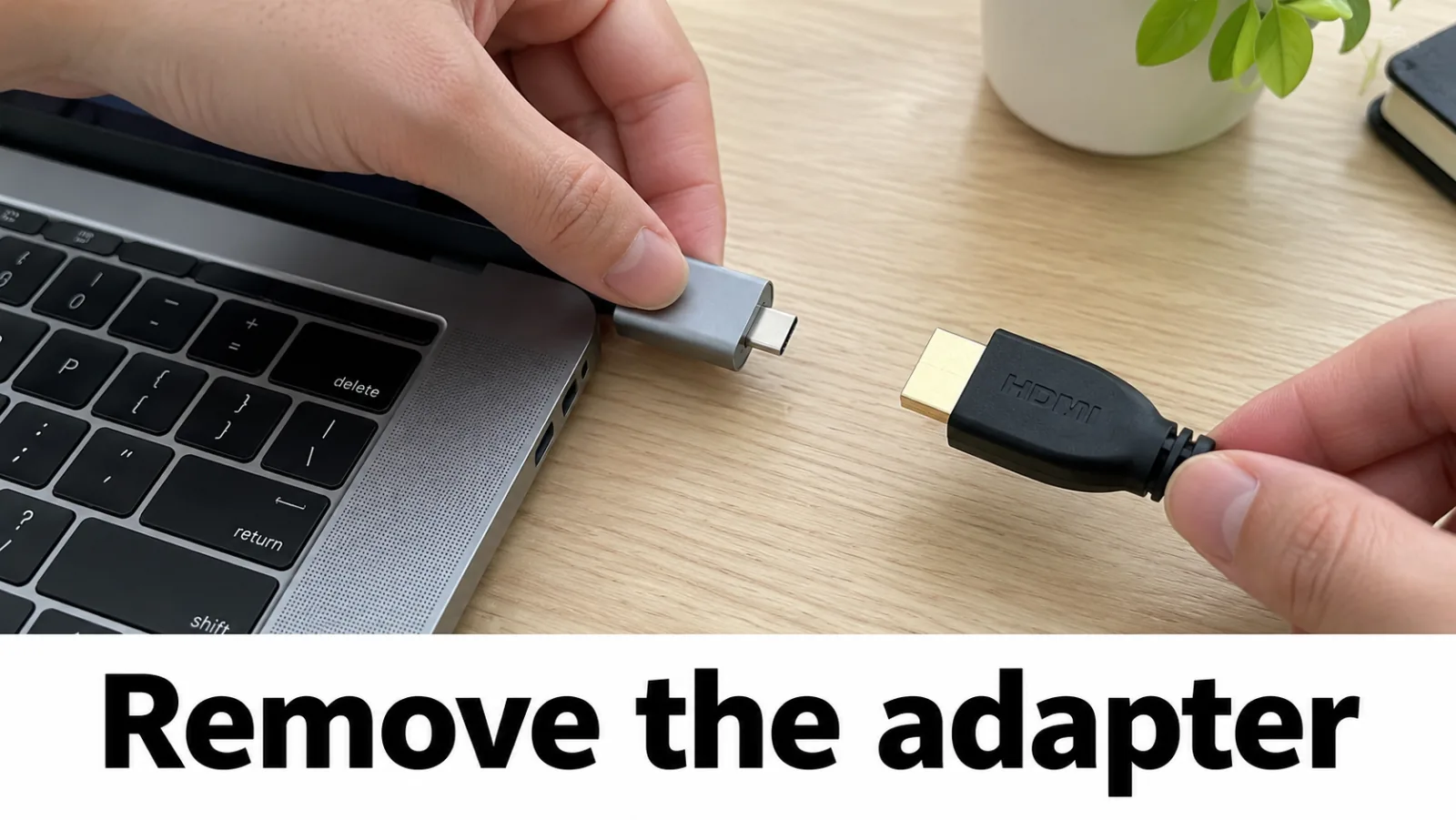
Passive DisplayPort-to-HDMI dongles and thin cables often fail at 144 Hz or 4K. Retest with a direct cable rated for your target mode, try another port, and temporarily drop to 60 Hz. If No signal appears instead of Out of range, continue on HDMI no signal.
FAQ
How is Out of range related to Input not supported?
Both are monitor OSD rejections of the current timing. See Input not supported when that exact phrase appears; stay here for Out of range / outside supported range.
Can I fix this by mashing the power button without Safe Mode?
A forced restart or Win+Ctrl+Shift+B sometimes redraws the screen, but it does not change an unsupported mode. Safe Mode or low-resolution video is the reliable path to open Display settings.
Is this the same as No signal?
No. Use HDMI no signal when the OSD says No signal. Out of range means a stream arrived but timing is outside the monitor’s range.
External is dark — did my laptop LCD fail?
No. Return to the external monitor test and laptop no display but power on. External dark does not mean the internal LCD failed.