Monitor input not supported
When an external monitor flashes Input not supported (or a close OEM wording), the monitor firmware rejected the current video mode. Sibling guide: monitor out of range. Pure black with No signal belongs on HDMI no signal.
When to use this page
- An external monitor shows Input not supported, Unsupported, or a similar OSD line while the PC is powered.
- You need to lower resolution or refresh rate after a GPU driver or game changed the mode.
- You also see Check signal cable or Cable not connected. Use the cable section on this page.
Steps
Step 1. Confirm the source input on the monitor OSD
Press the monitor’s physical menu / input button. Select the exact input that matches your cable (HDMI 1 vs HDMI 2, DisplayPort, VGA). Wrong input often looks like a rejected or blank feed even when the PC is fine.
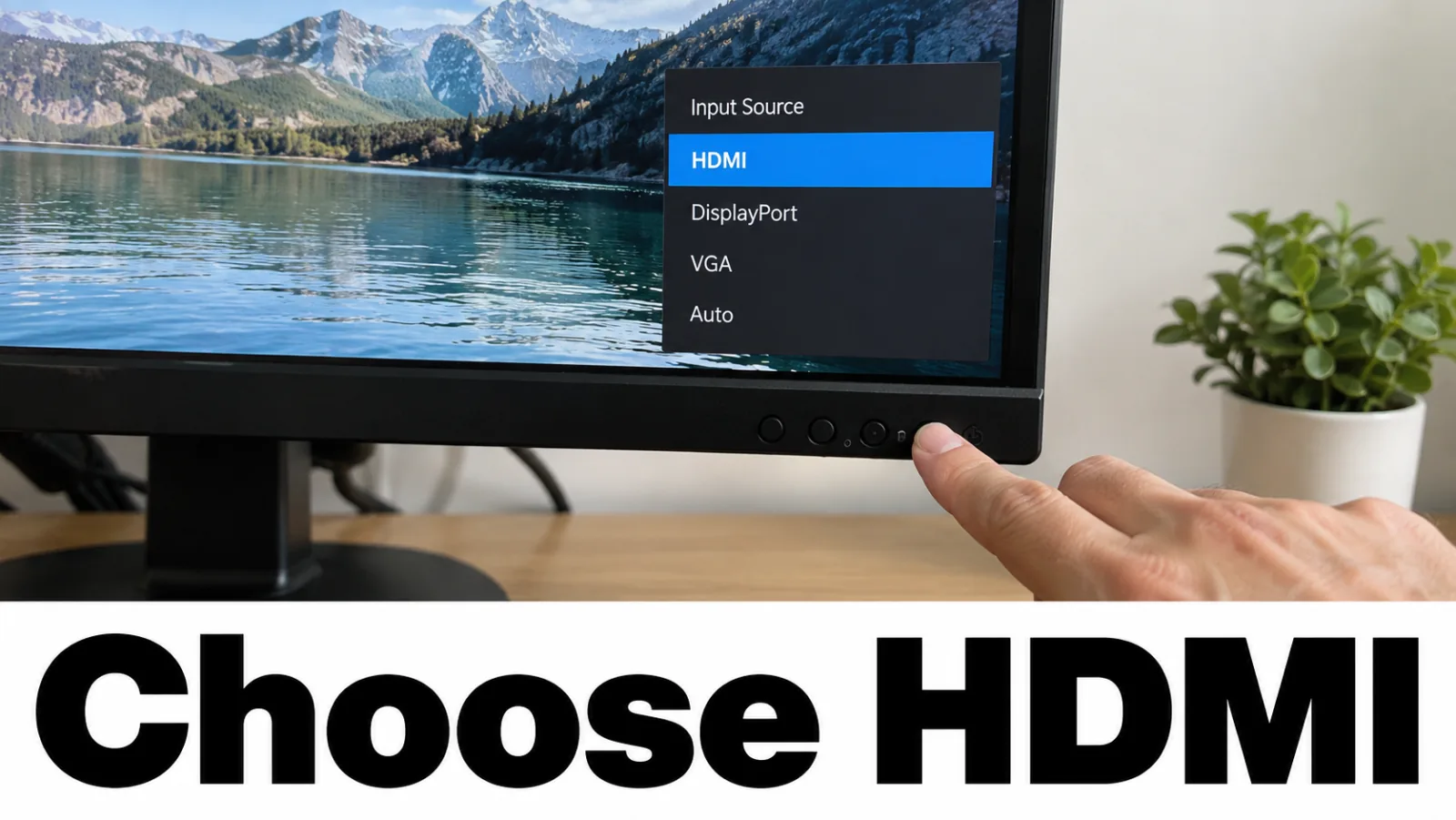
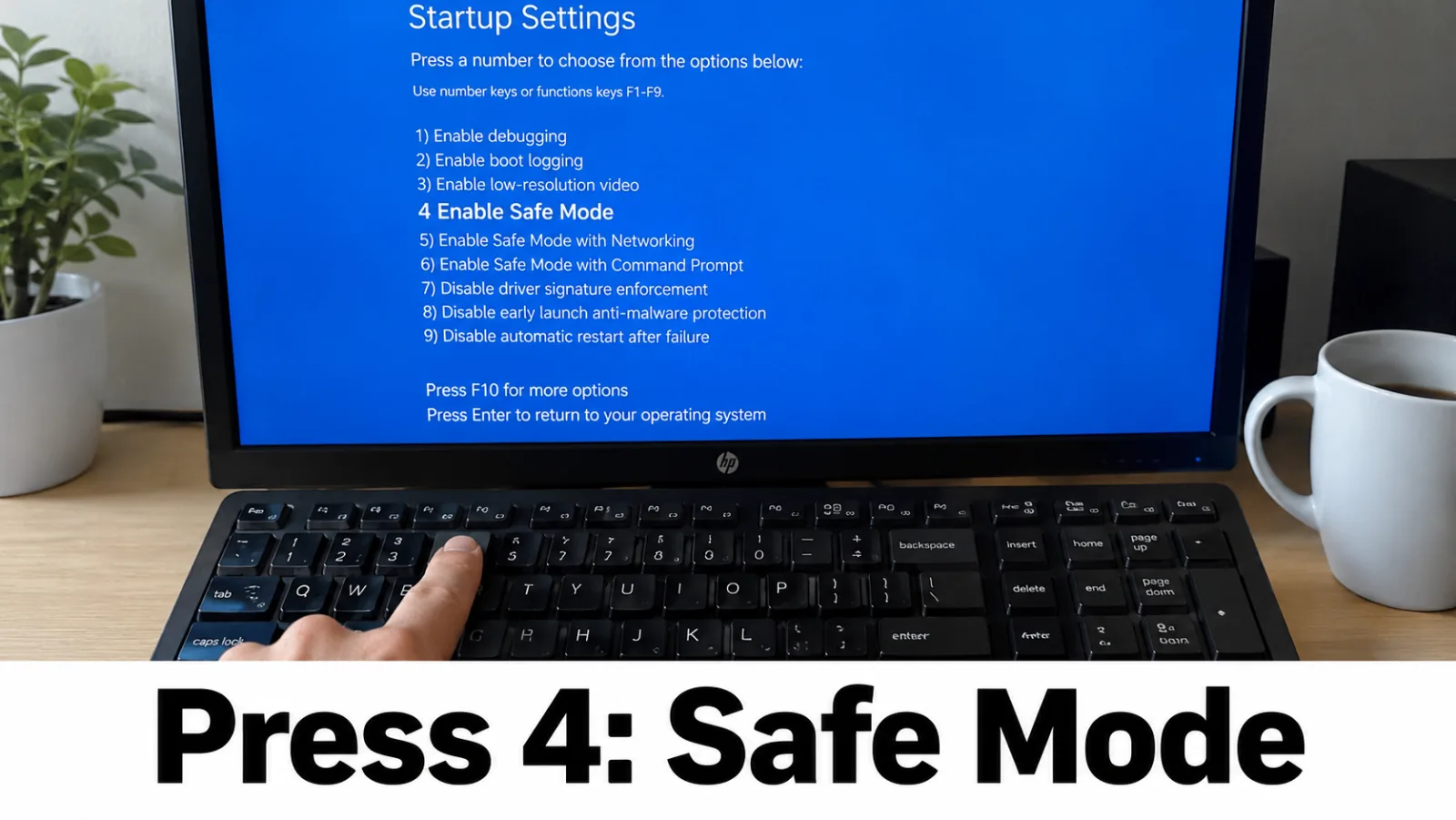
Step 2. If you cannot see Windows, boot Safe Mode or low-resolution video
When the OSD blocks the desktop, you cannot open Settings normally. Use Windows Recovery → Troubleshoot → Advanced options → Startup Settings → Restart, then choose Safe Mode or Enable low-resolution video. Microsoft’s blank-screen and external-monitor flows assume you regain a usable picture before changing modes. Official external-monitor guide: Troubleshoot external monitor connections in Windows.
Step 3. Set Recommended resolution
Open Settings → System → Display, select the external monitor, and choose the Recommended resolution. Microsoft documents this under Change your screen resolution and layout in Windows. Avoid custom “List all modes” extremes until Recommended works.
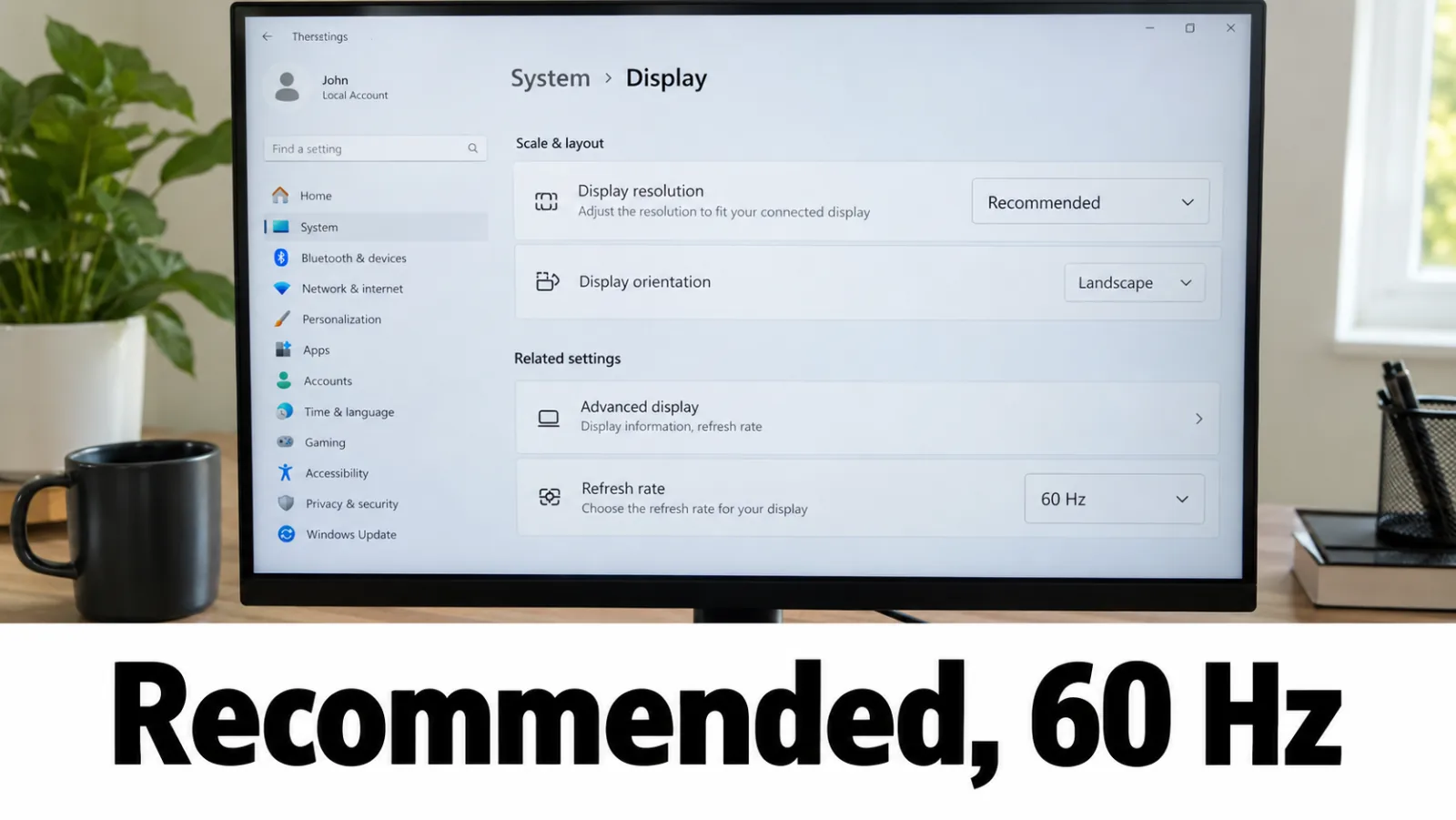
Step 4. Lower refresh rate — start with 60 Hz
Still on Display settings, open Advanced display and set Refresh rate to a value the monitor supports — try 60 Hz first. Guide: Change the refresh rate on your monitor in Windows.
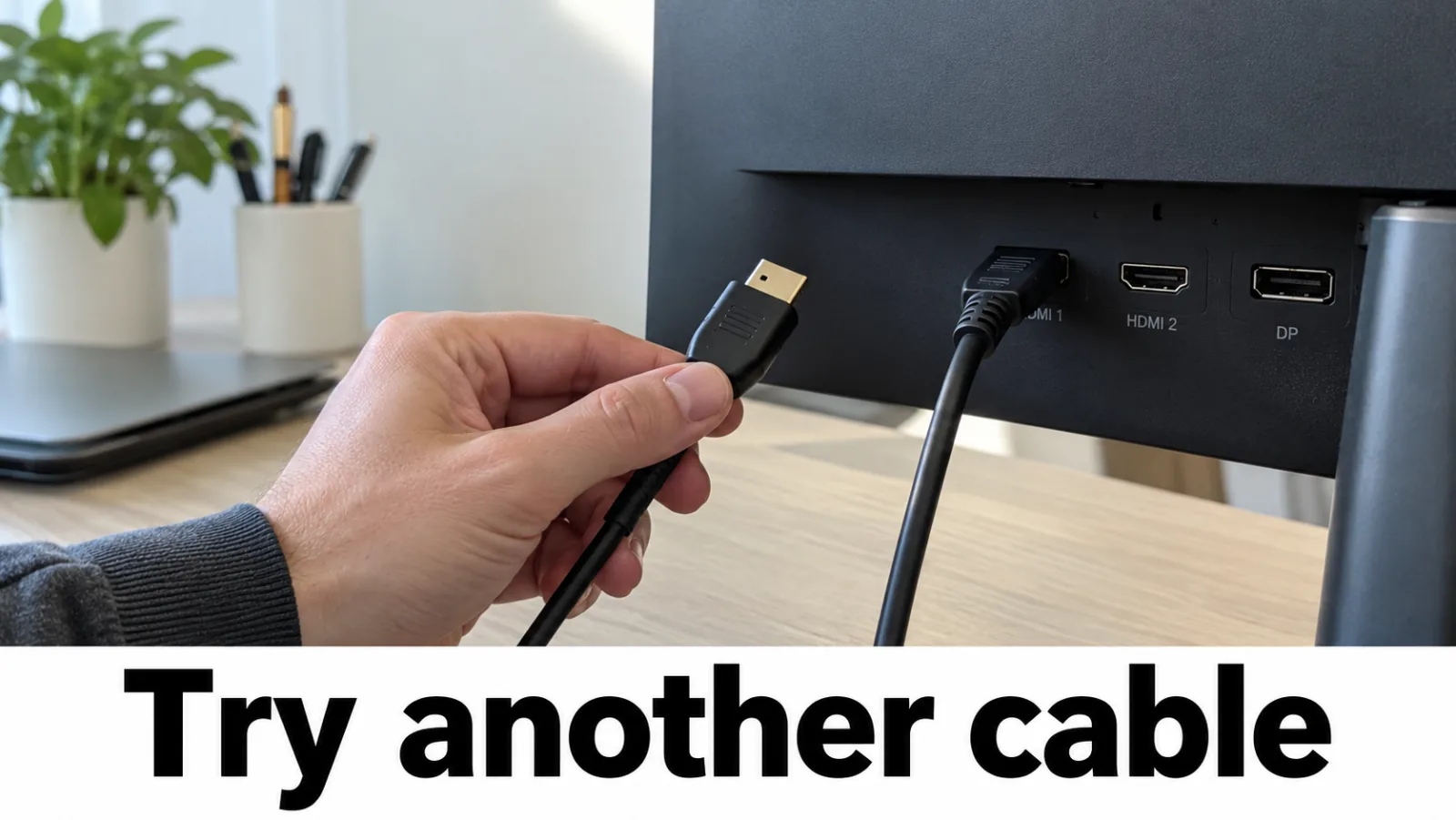
Step 5. Retest with another cable, port, or PC
Seat a known-good cable firmly. Skip docks and unpowered dongles on the first pass. Try another video port on the PC and the monitor. Connect the same monitor to a second computer: if the OSD persists only on one PC, focus on that GPU / driver path; if it fails on both, suspect the monitor or cable. For No signal rather than Input not supported, jump to HDMI no signal.
Step 6. Update or roll back the GPU driver
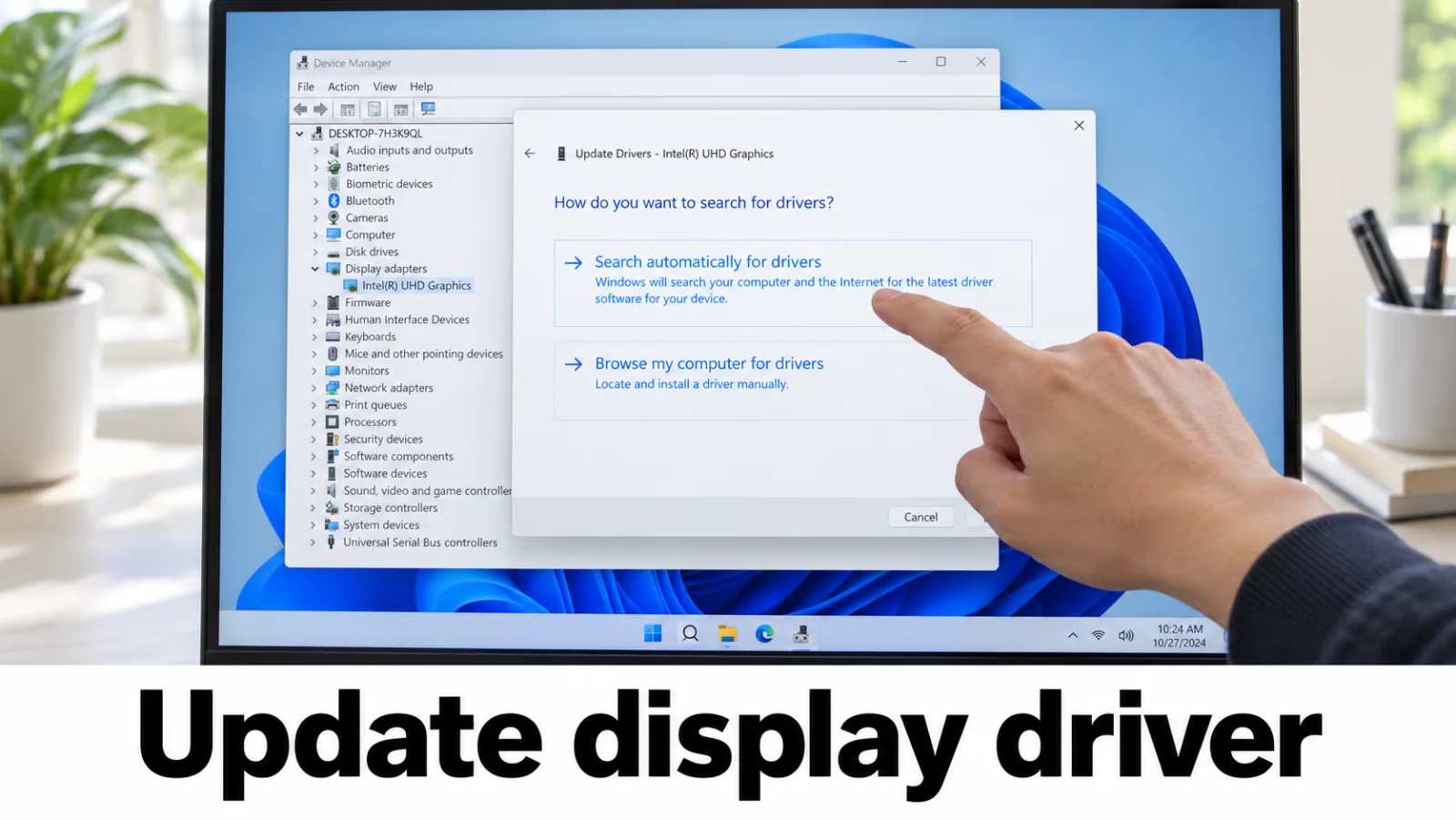
Settings → Windows Update → Check for updates (include optional driver updates when offered). Or download from the GPU vendor only: NVIDIA Driver Downloads, AMD Drivers, Intel Download Center. Device Manager → Display adapters → Properties → Driver → Roll Back Driver if the problem started after an update. Do not use third-party driver packs, DLL fixers, or “driver booster” tools.
Check signal cable / Cable not connected
Monitors also show Check signal cable, Cable not connected, or brand variants of the same idea. Those messages mean the scaler sees no valid video input — not a separate site topic. Work this path in order:
- Confirm the PC is powered and not stuck in sleep.
- Match the OSD input to the physical cable (Step 1).
- Reseat or replace the cable; avoid cheap passive adapters for high-resolution modes.
- Press Win + P and try Extend, Duplicate, and Second screen only.
- If the OSD still says No signal with a black panel, continue on HDMI no signal.
FAQ
Is Input not supported the same as Out of range?
Related but not identical. Both mean the monitor rejected the current video timing. See monitor out of range for that wording; stay here when the OSD says Input not supported.
Is this the same as No signal or HDMI no signal?
No. No signal usually means no valid stream. Use HDMI no signal for that path. Input not supported means a signal arrived but the mode was rejected.
What about Check signal cable or Cable not connected?
Check signal cable and Cable not connected mean the monitor is not getting a usable picture on the selected input. Reseat the cable, pick the matching input, and try a known-good cable in the section below.
My laptop built-in screen is black — start here?
No. OSD messages appear on an external monitor. For a dark laptop panel with power, start at laptop no display but power on and the external monitor test. External dark does not mean the internal LCD failed.