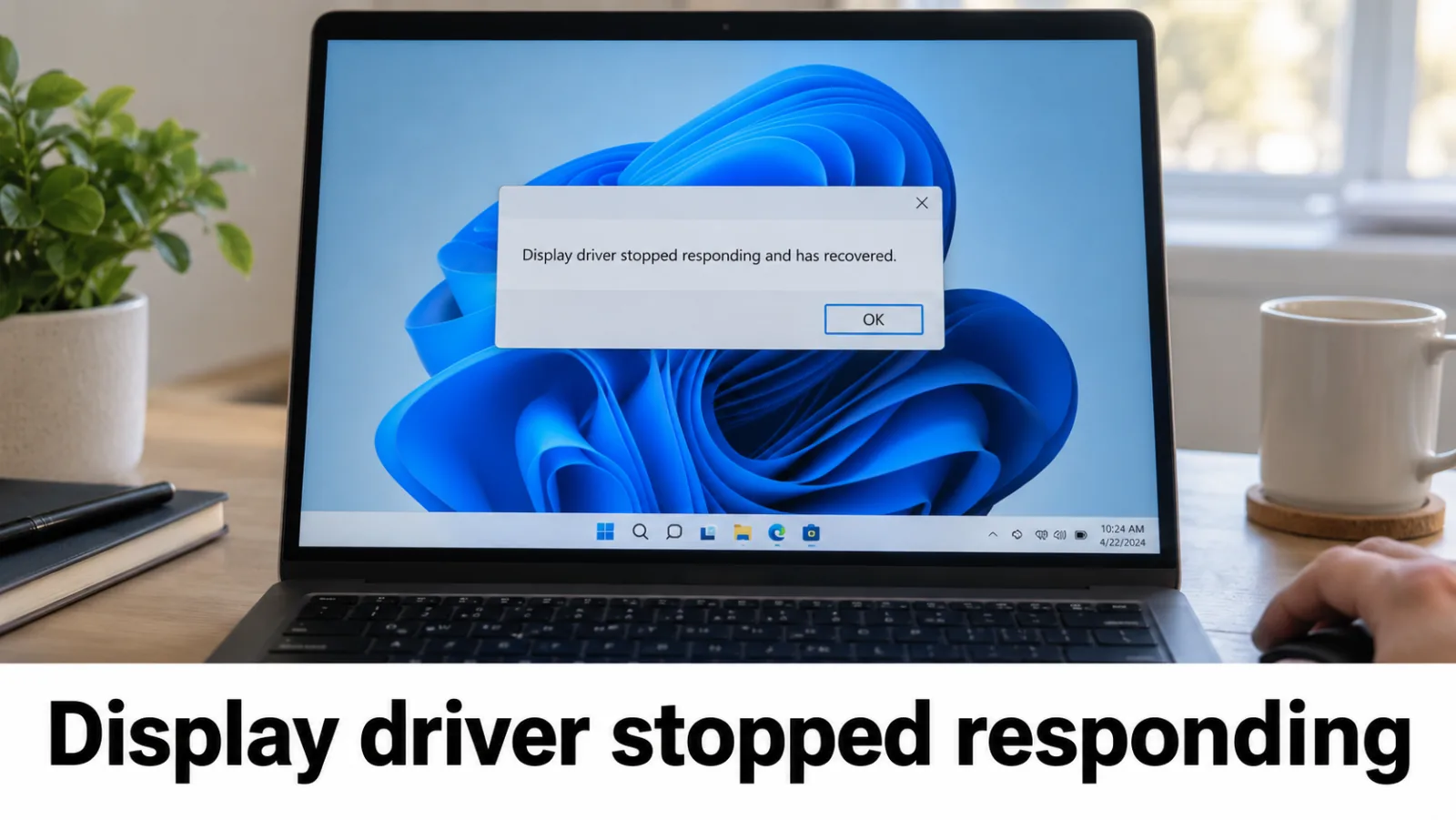
Display driver stopped responding and has recovered
Windows may briefly flash or blank the screen while Timeout Detection and Recovery (TDR) resets the GPU driver. Treat this as a driver and stability issue — not a registry tuning project. Still stuck on a dark panel with power? Start at laptop no display but power on and the external monitor test.
What TDR means
Microsoft documents Timeout Detection and Recovery for the WDDM display stack: when the GPU or its driver stops responding, Windows attempts a reset. A successful recovery shows the user-facing line Display driver stopped responding and has recovered and typically logs a Display Event 4101. Read the overview on Microsoft Learn: Timeout Detection and Recovery. This page is the user path — update or roll back the driver — not a kernel-debugging walkthrough.
Steps
Step 1. Confirm the TDR symptom
Write down when it happens (game launch, sleep resume, external monitor hot-plug). Optional: Event Viewer → Windows Logs → System → look for Display source Event 4101 with the recovered wording. Note any recent GPU driver or Windows Update changes.
Step 2. Try a quick graphics reset
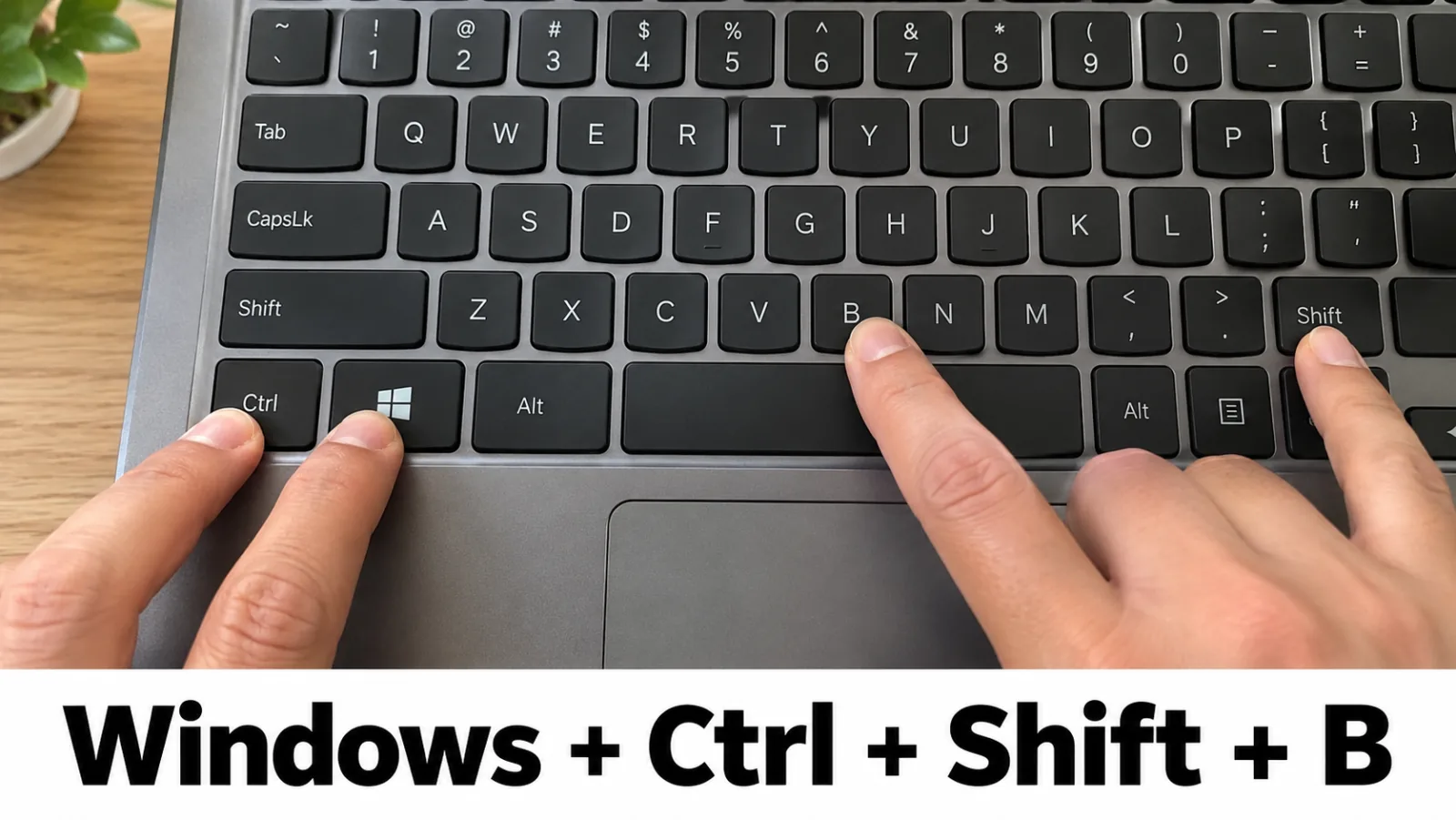
Press
Win + Ctrl + Shift + B
once. The screen may flicker or the PC beep as the stack resets.
If recoveries keep returning, continue with driver repair — do not stop at the chord and do not edit
TdrDelay.
Step 3. Update the display driver (Windows Update or GPU vendor)
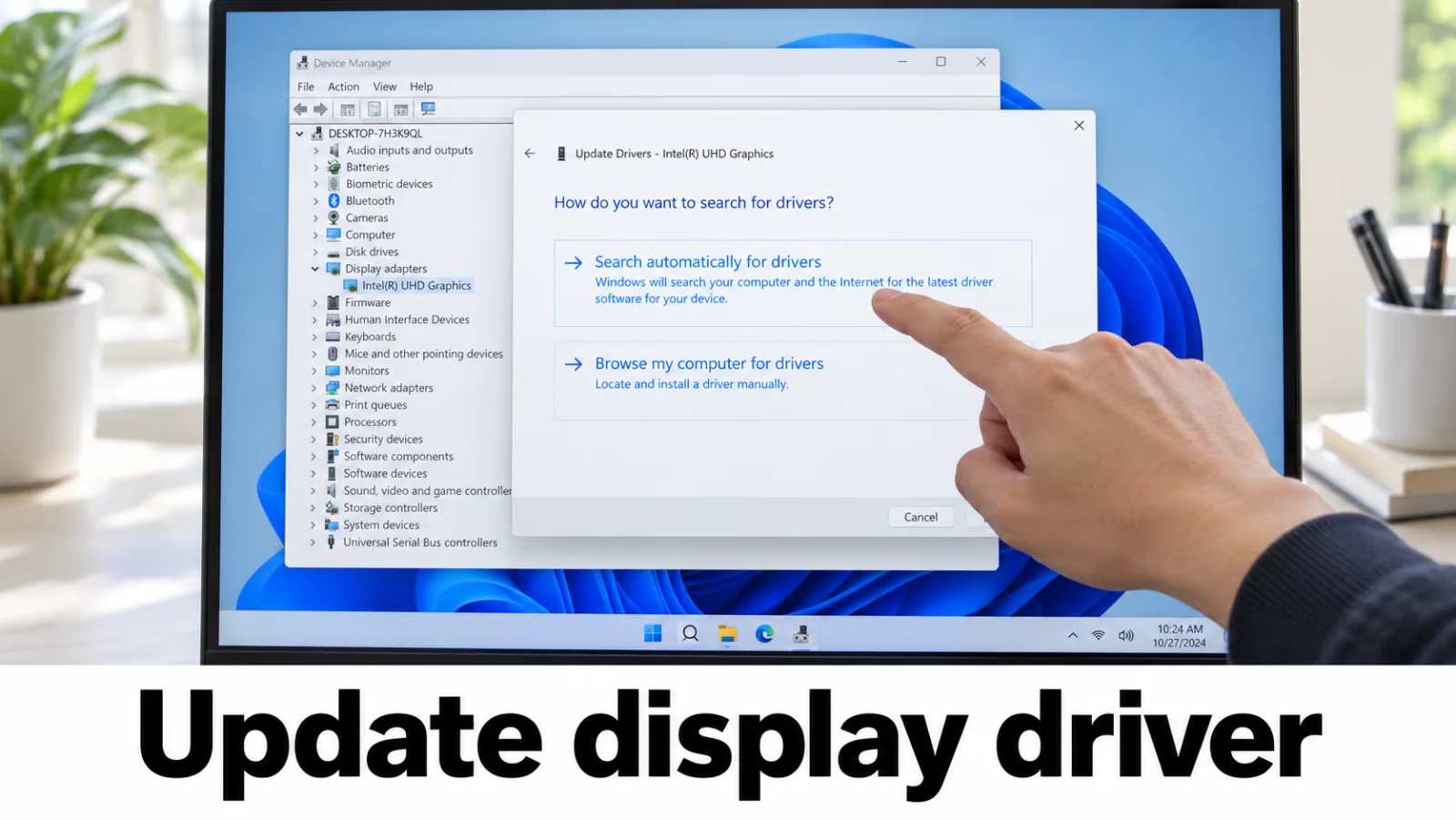
Settings → Windows Update → Check for updates (include optional driver updates when offered). Or download only from the GPU vendor: NVIDIA Driver Downloads, AMD Drivers and Support, Intel Download Center. Do not use third-party driver packs, DLL fixers, or “driver booster” tools.
Step 4. Roll back or clean reinstall
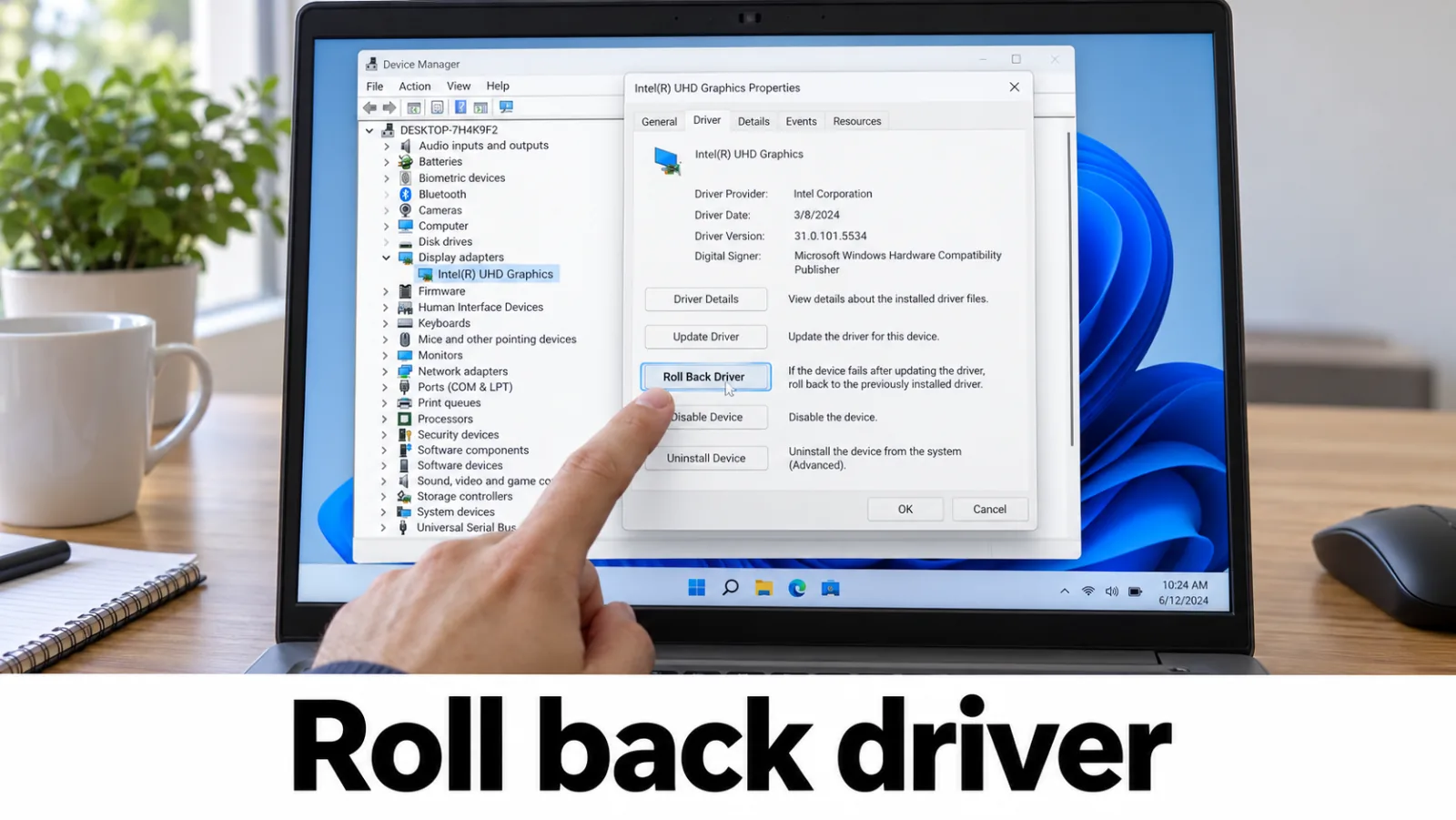
Device Manager → Display adapters → Properties → Driver → Roll Back Driver when available. Otherwise uninstall the device (you may check Delete the driver software), reboot, and let Windows or the vendor package reinstall. Keep using only the official NVIDIA / AMD / Intel entry pages linked above.
Step 5. Check heat and branch if the panel stays black
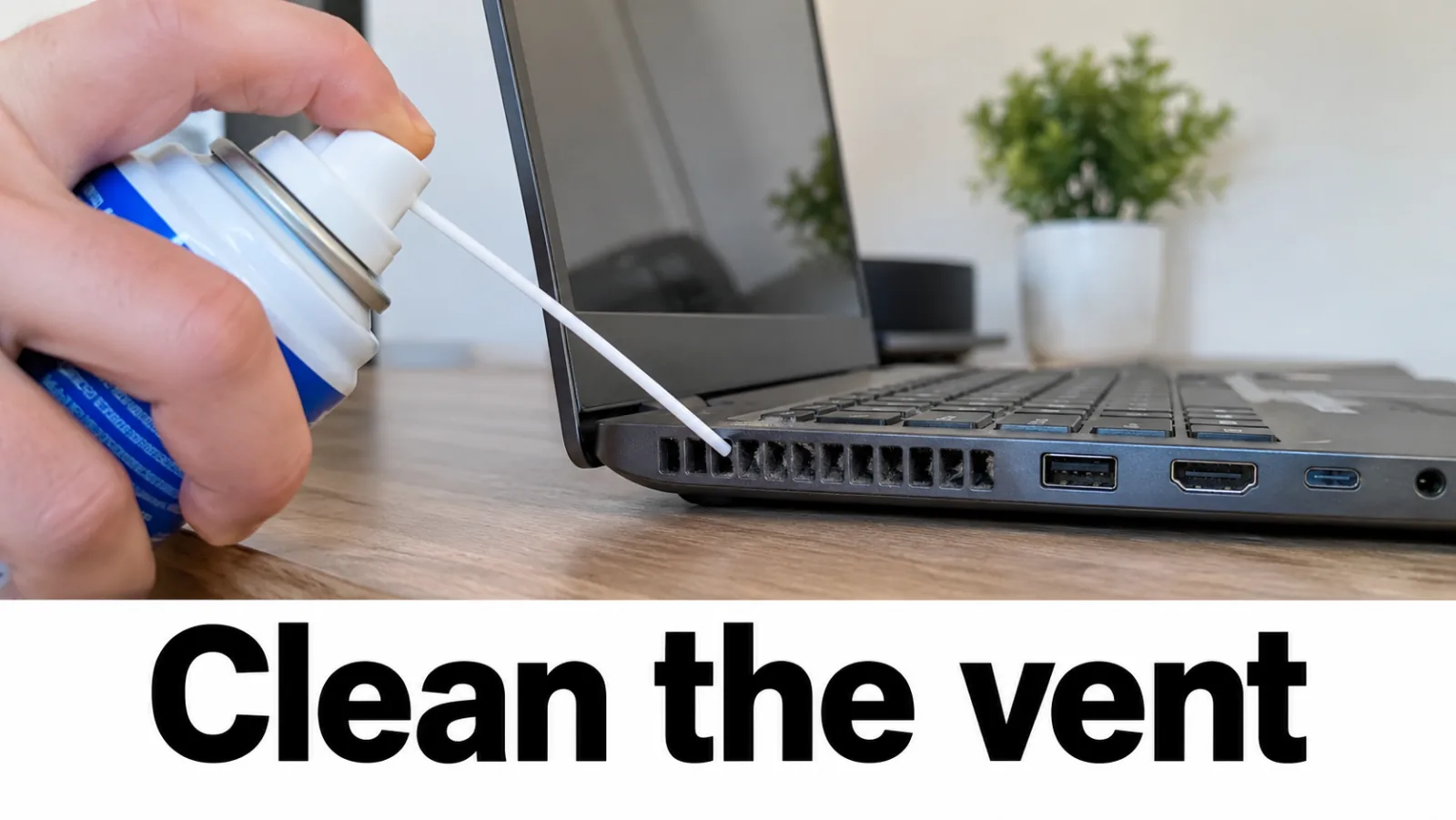
Clean vents, avoid soft surfaces that block intake, and retest without overclock utilities. External flicker or OSD errors: see out of range and input not supported. If the panel stays black with power after recoveries, return to laptop no display but power on and external monitor test — external dark still does not mean the internal LCD failed.
Do not edit TdrDelay
FAQ
What does Display driver stopped responding and has recovered mean?
Windows Timeout Detection and Recovery (TDR) reset a hung display driver. See
Microsoft Learn: Timeout Detection and Recovery.
Fix the driver or hardware path. Do not edit
TdrDelay
as a DIY cure.
Is changing TDR registry timeouts a valid fix?
No. Do not edit TdrDelay or related TDR timeout values. Prefer driver update, rollback, official GPU packages, and thermal checks.
Is this the same as a full black screen with power on?
Related but not identical. If the panel stays black with power, also use laptop no display but power on and the external monitor test.
Should I download a driver pack from a random site?
No. Use Windows Update or the official NVIDIA, AMD, or Intel download pages. Do not use third-party one-click driver or DLL fix tools.