Laptop backlight not working
Use this when an external monitor works but the laptop backlight is not working: the panel stays black or very dim, or the brightness Fn keys do nothing. If the external stays dark, go back to the external monitor test — that is not a backlight conclusion.
When to use this page
Dell lists brightness-too-low as a common reason a powered laptop looks blank. HP’s “starts but the screen remains blank” flow also treats backlight / graphics-driver issues after an external shows video.
Screen without backlight
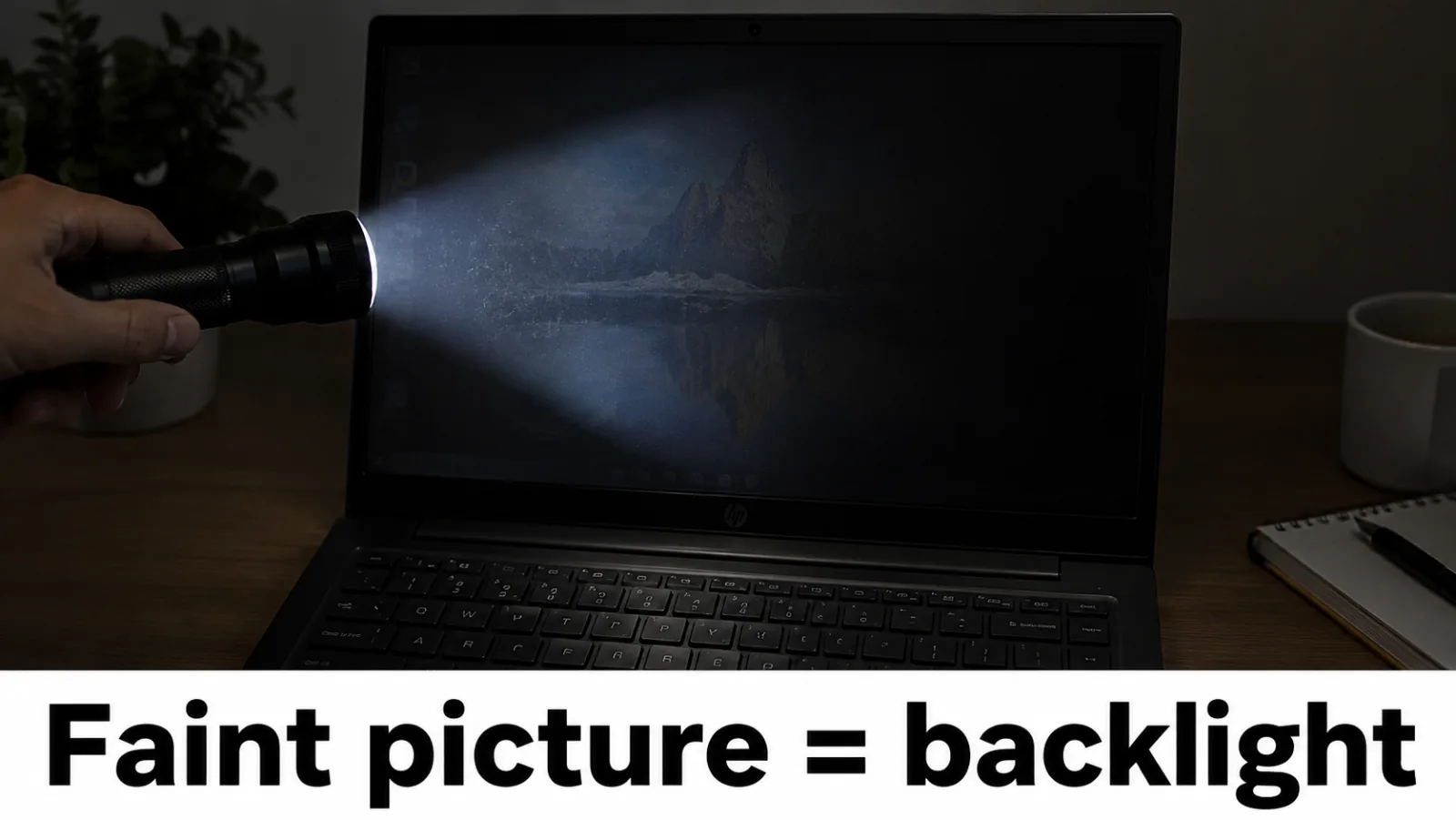
A screen without backlight can still be drawing a picture with no light behind it. Start with the brightness Fn keys. If a flashlight at a shallow angle shows a faint desktop, the panel is working and the backlight path is the problem. Continue with the steps below, then the display cable guide if the picture never comes back.
Backlight steps
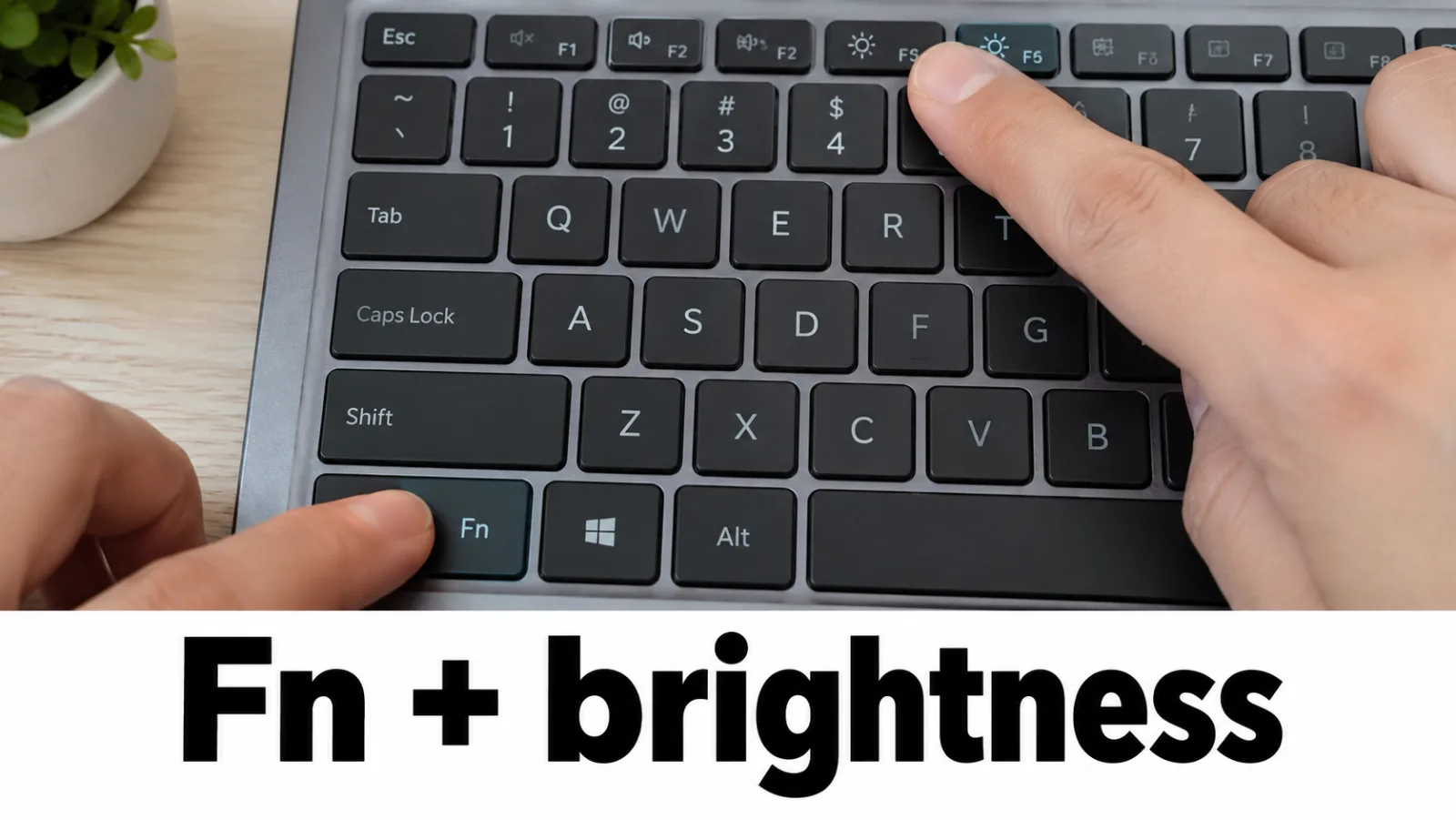
Step 1. Press Fn + brightness up
Hold Fn and tap brightness up 8–10 times. Also try the key printed with a sun/brightness icon alone — layouts differ by OEM.
Step 2. Raise brightness in Windows
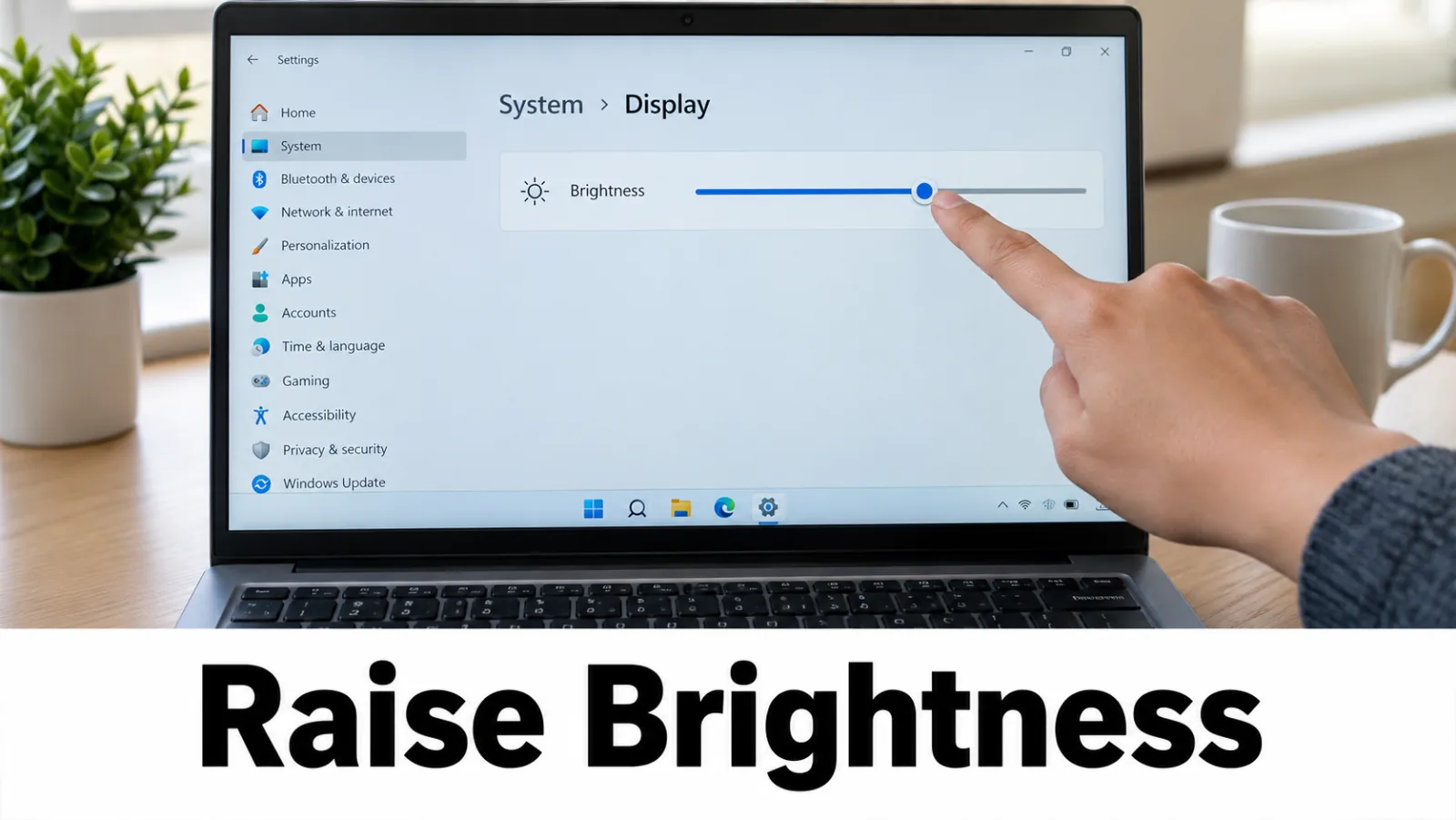
On the working external display open Settings → System → Display and raise Brightness. Turn off Night light and check HDR toggles that can make the built-in panel look crushed.
Step 3. Optional: flashlight check (DIY)
In a dark room, shine a flashlight at a shallow angle on the panel. If you see menus or the desktop faintly, the LCD is drawing without backlight — continue toward cable / panel service, not a Windows reinstall. We label this DIY because OEMs document brightness and panel self-tests more formally than the flashlight trick.
Dell LCD BIST (Dell only)
On many Dell notebooks: power off, disconnect extras, connect AC, press and hold D then press power until color bars appear (black / white / red / green / blue). Clean bars → panel hardware is more likely OK (look at drivers/settings next). Broken bars or no colors → panel hardware suspicion; contact Dell support rather than buying random LED-strip parts. Full Dell BIST steps and the official support link live on Dell no-display (OEM support stays on brand pages only).
Next hardware stop when a faint image exists: display cable and inverter checks. Avoid random “inverter” purchases on modern LED-backlit panels without an OEM parts diagram.
FAQ
Flashlight shows a faint desktop — what does that mean?
The LCD is likely drawing an image but the backlight path is out. That is a panel, cable, or LED-driver hardware path — not a missing Windows install. Continue to the cable guide or OEM service.
Is this the same as “laptop backlight not working”?
Yes. Brightness Fn keys that do nothing, a screen without backlight, and a panel that stays dark while an external monitor works all use this page. If both screens stay dark, go back to the external monitor test.
Do all laptops run LCD BIST with the D key?
No. Holding D at power-on is Dell’s documented LCD built-in self-test. Other brands have their own panel tests — check HP, Lenovo, or your model’s support page. Never invent a universal key.
External monitor is also dark — start here?
No. Return to the external monitor test. External dark does not mean the laptop backlight failed; the external path already bypasses the built-in panel.