Dell laptop no display but power on
Brand layer on the shared laptop no display but power on tree. Start with the same external monitor test — then use Dell LEDs, projection keys, LCD BIST, and Drivers & Downloads.
What this page covers
Desktop towers with no video belong on PC turns on but no display, not this laptop brand page.
Dell steps
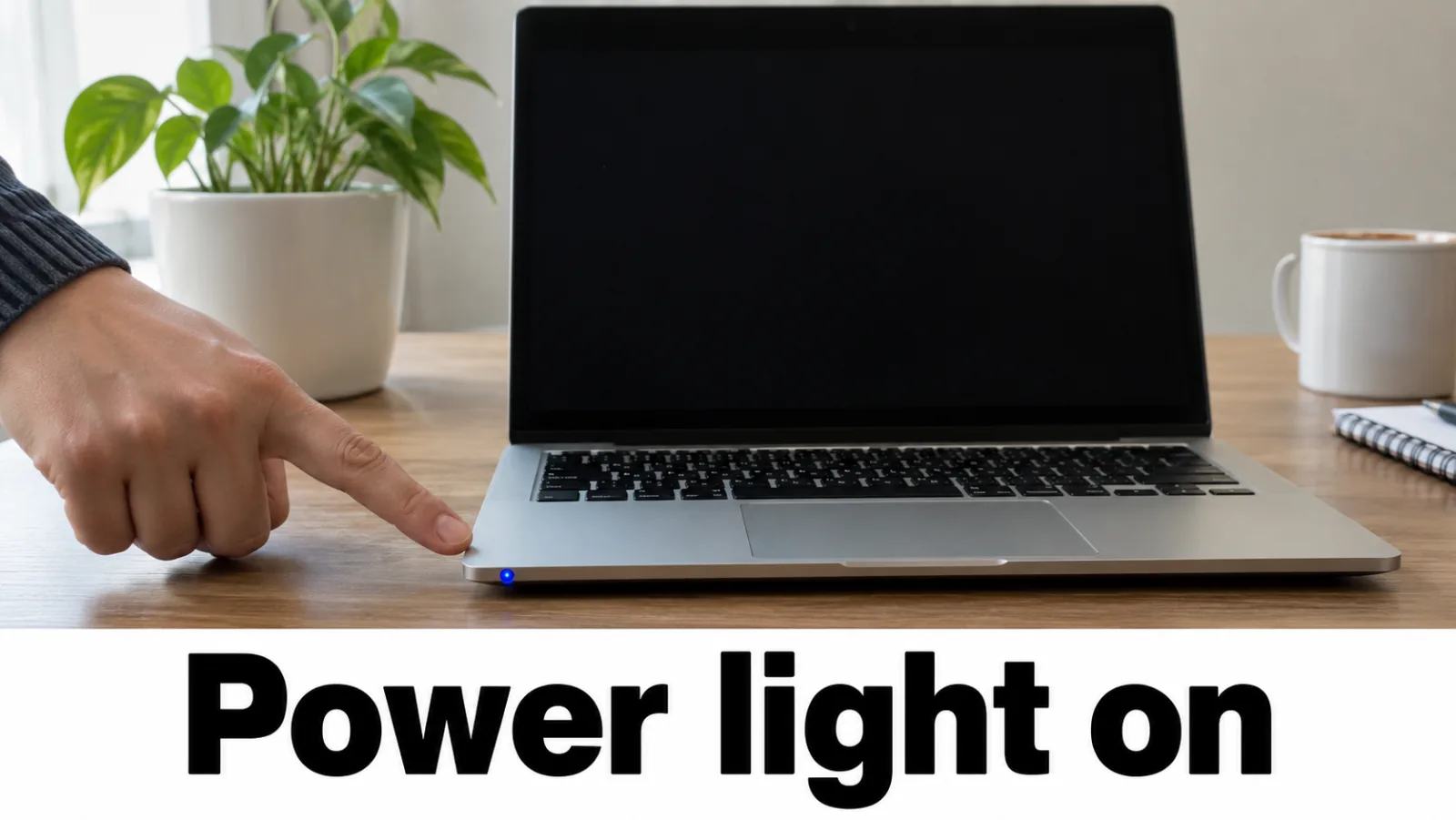
Step 1. Confirm Dell power and diagnostic LEDs
Look for power-button LED, battery LED, fan spin, or keyboard backlight. Match diagnostic blink / beep patterns to Dell’s guide for your series (Latitude, Inspiron, XPS, and so on). No power signs → treat as power / won’t-turn-on, not this page.
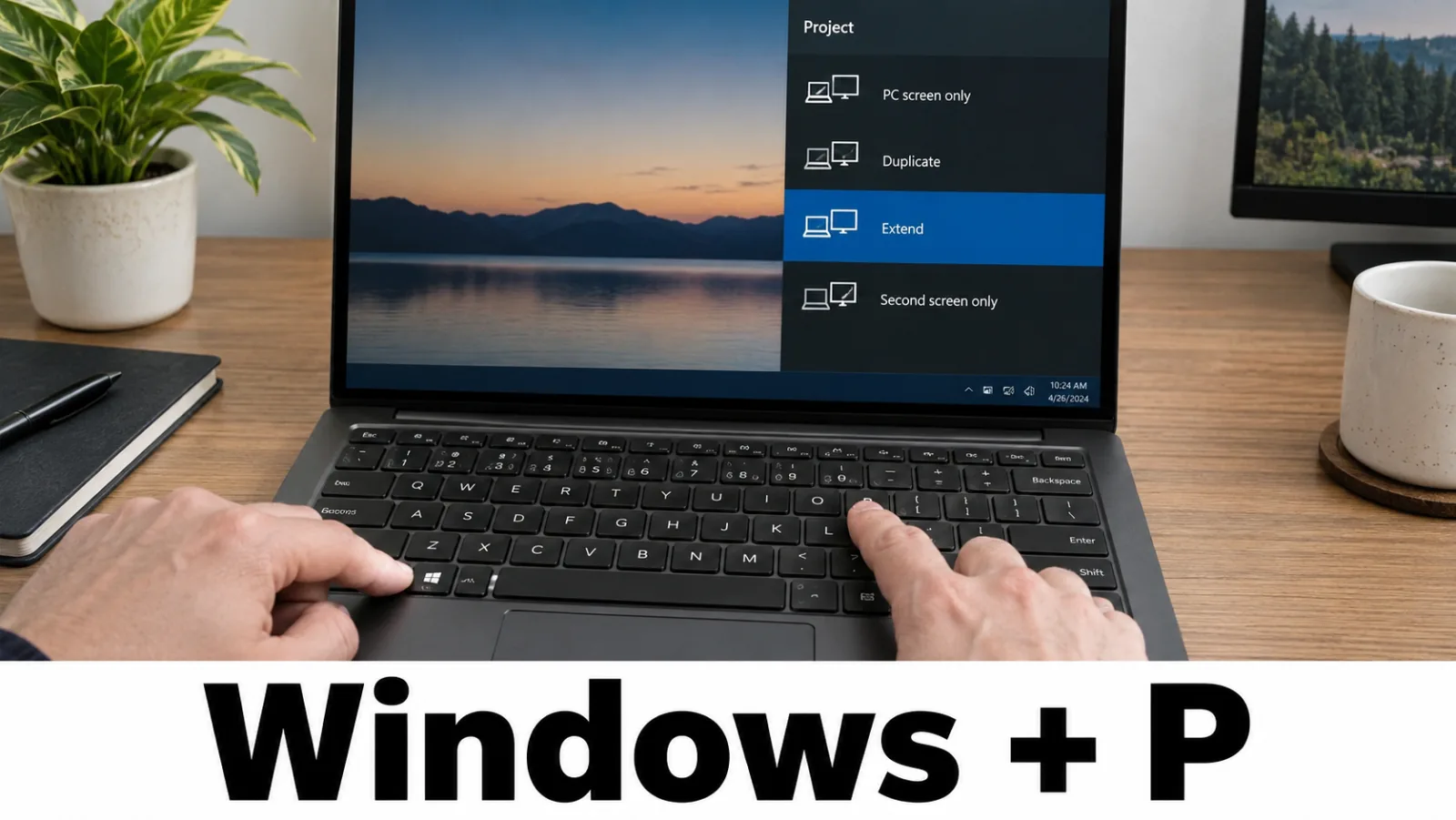
Step 2. External monitor first cut (Win+P)
Connect a known-good monitor with HDMI, DisplayPort, or another port your model supports. Press Windows + P and choose Duplicate or Extend.
- External works → built-in panel / backlight / cable path. Continue brightness and BIST below, then backlight guide.
- External dark / No Signal → swap cable and port, confirm the monitor works on another PC, then return to the external monitor test (GPU / POST / settings — not “LCD dead”).
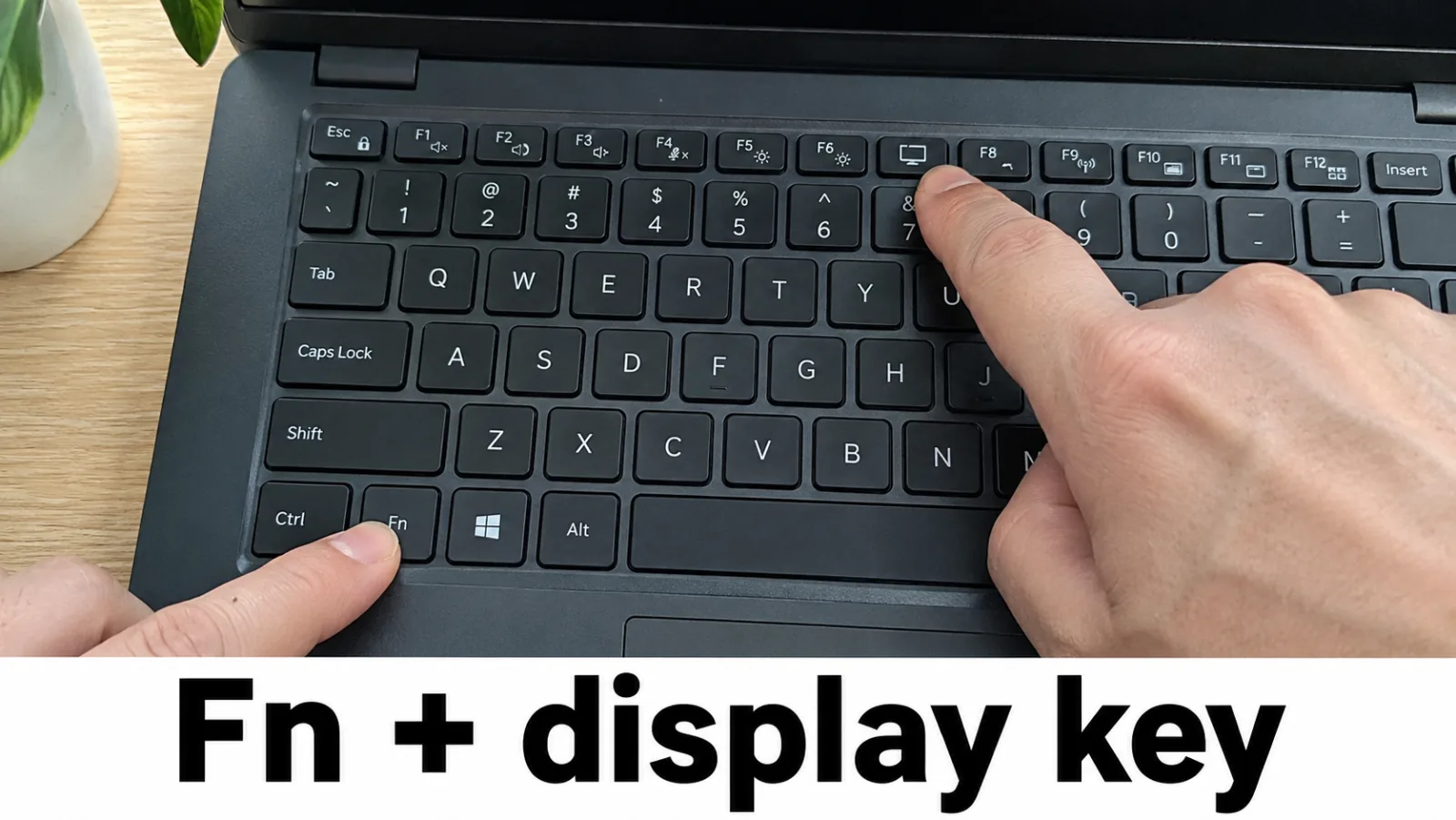
Step 3. Cycle Dell Fn display key
Press Fn + the key with a monitor / display icon (commonly F8 on many Dell notebooks; check your manual). Cycle through laptop only → duplicate → extend → external only until the external shows video. Also retry Windows + P.
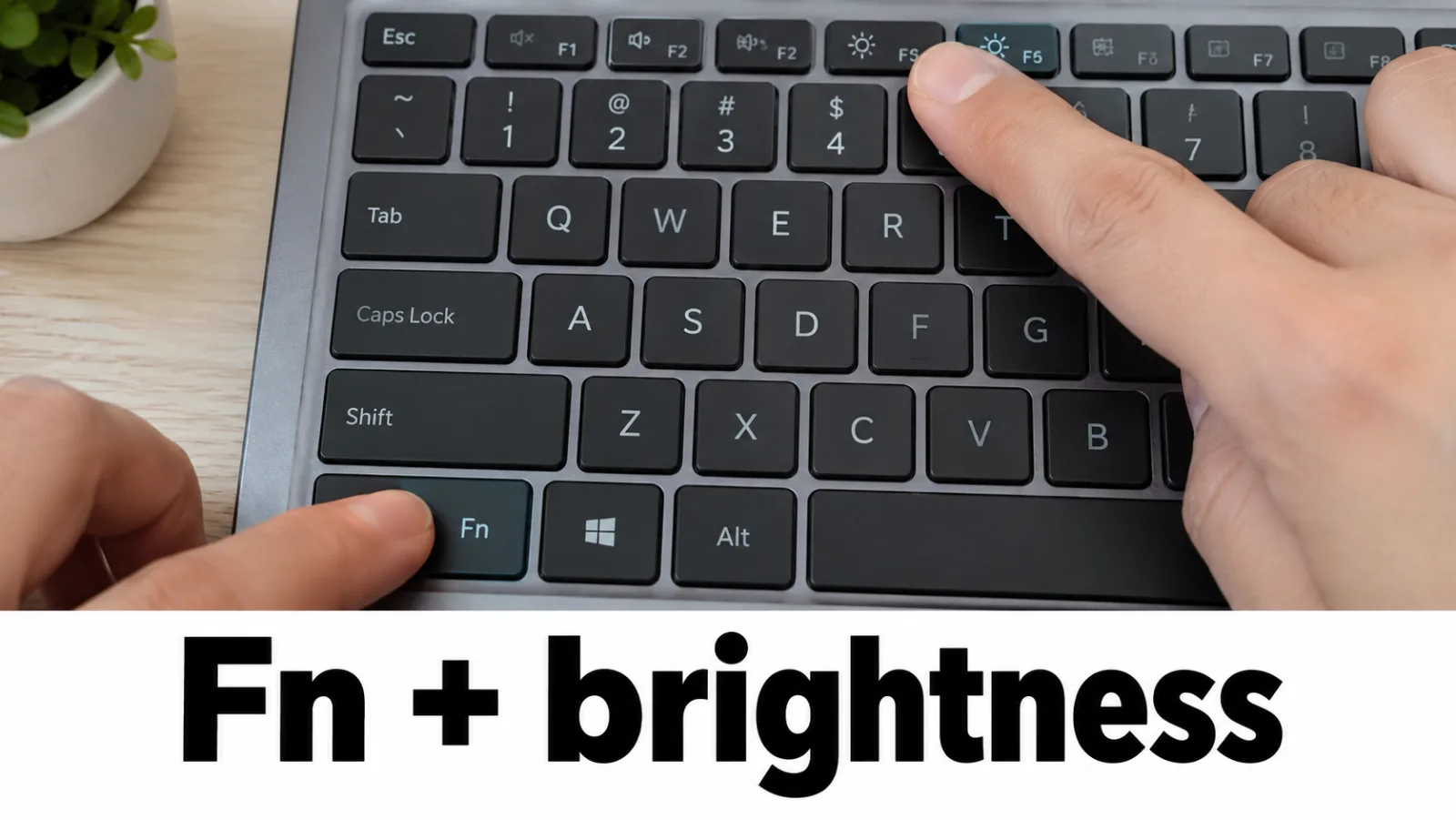
Step 4. Raise brightness before assuming a dead panel
Hold Fn and tap brightness up several times. If the external already shows Windows, open Settings → System → Display and raise Brightness on the built-in panel. Then continue to LCD BIST if the lid panel stays dark.
Step 5. Install video drivers from Dell only
From a working display (external is fine), open Dell Drivers & Downloads, enter your Service Tag, and install the
Video
(and Chipset if offered) package.
Roll back a recent bad driver in Device Manager if the blank started after an update.
Dell warns against third-party drivers — follow that.
Do not edit
TdrDelay
or download DLL “fixers.”
For driver-timeout messages, see display driver stopped responding (no registry TDR hacks).
LCD BIST (Dell only)
- Shut down the Dell notebook. Disconnect USB docks and extras. Connect AC power.
- Press and hold D on the built-in keyboard, then press the power button. Keep holding D until the test starts (often several seconds).
- Watch for cycling solid colors (typically black, white, red, green, blue). Clean full-screen bars → panel hardware is more likely OK; look at drivers, brightness, and OS next. Missing colors, lines, or no bars → panel hardware suspicion — contact Dell Support rather than buying random LED-strip parts.
- If BIST is unavailable on your model, skip it and continue with the backlight guide and Dell Support for your Service Tag.
Site backlight page summarizes this and links here for the full Dell steps plus the official support URL below.
Official Dell links
FAQ
External monitor is also blank — is my Dell LCD dead?
No. The external path bypasses the built-in panel. Treat GPU, cable, port, projection mode, POST, or motherboard paths first. Only after the external works do you suspect the built-in screen or backlight.
My model has no LCD BIST with the D key?
Skip BIST. Continue with the external test, brightness, Safe Mode driver rollback, and Dell Support for your Service Tag. Never invent a universal BIST key for HP or Lenovo.
Where does backlight troubleshooting live?
After an external monitor works, use the site backlight guide. Full Dell BIST details and the official Dell support link stay on this brand page.
Should I download a one-click Dell screen fixer?
No. Use Dell Drivers & Downloads or Microsoft Update for signed drivers only. Do not edit TdrDelay or install DLL packs.