Display cable and inverter checks
Only continue here after external video works and brightness / backlight basics still leave the built-in panel dark, dim, lined, or lid-sensitive.
Entry gate
Some Dell models offer an LCD built-in self-test (often described as holding D while pressing power after shutdown). That check is model-specific — confirm in Dell’s guide for your service tag. Other brands: look up that OEM’s panel self-test if documented; do not assume every laptop uses the Dell key combo.
Checks
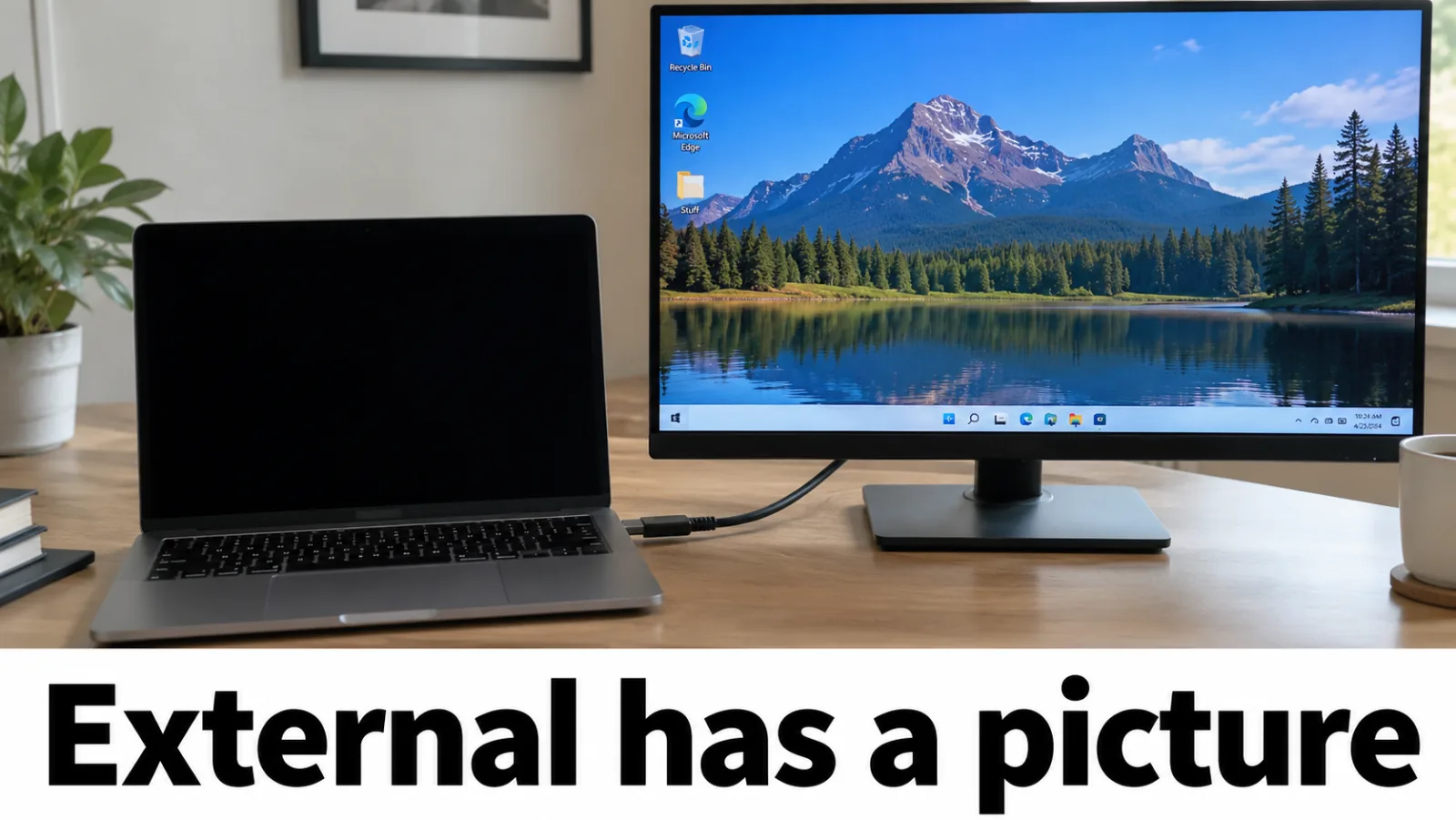
Step 1. Confirm the external branch
Re-run the external monitor test. If the external is also dark, stop this page and return to RAM / GPU / port troubleshooting — you are not in a panel-cable branch.
Step 2. Gentle lid flex observation
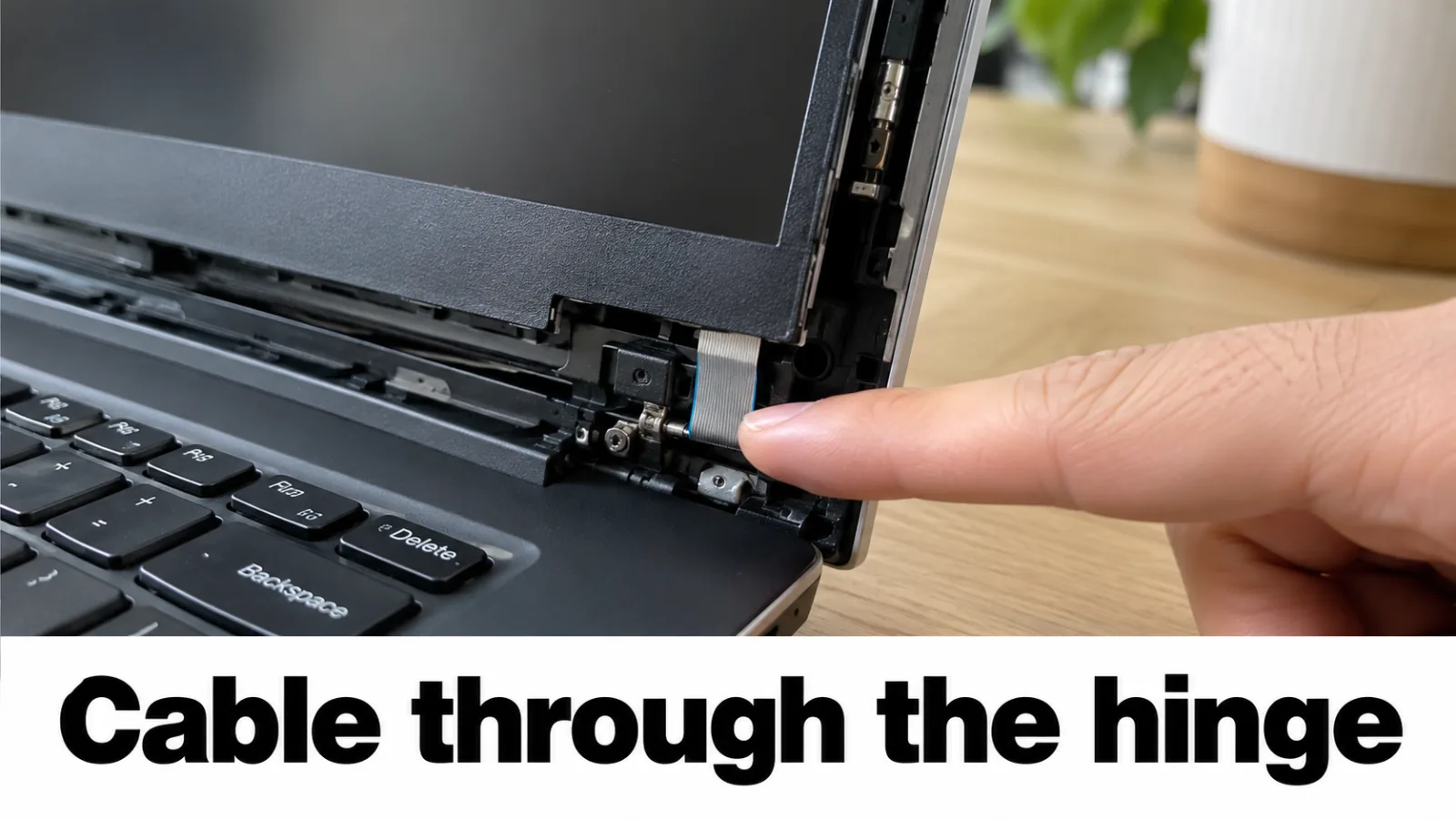
Open and close the lid slowly through its travel. Momentary image, colored lines, or flicker near certain angles often point to a strained display cable in the hinge. Do not force the lid past its stops.

Step 3. Use the OEM service flow
Open the HP, Dell, or Lenovo service guide for cable reseat or panel replacement. Order FRU parts by the official diagram when possible. Brand hubs: HP, Dell, Lenovo.
Step 4. Stop before board-level improvisation
If the cable connector sits under the motherboard, needs heat tools, or the guide warns about high skill steps, stop DIY and use authorized repair. Avoid random “universal inverter” parts on modern LED panels without an OEM match.
FAQ
Do modern laptops still have inverters?
Most LED-backlit panels do not use CCFL inverters. Focus on the eDP/LVDS cable and panel power from the OEM parts diagram — not a universal inverter purchase.
Is lid flex a definitive test?
No, but intermittent image or lines while moving the lid strongly suggests cable or hinge strain and justifies an OEM service path.
External is dark — should I open the hinge?
No. External dark means stay on the system-video path (ports, Win+P, drivers, RAM). Cable work belongs after external video works.