HP laptop no display but power on
Brand layer on the shared laptop no display but power on tree. Prefer external monitor test first, then HP Support downloads for your exact product number.
What this page covers
HP steps
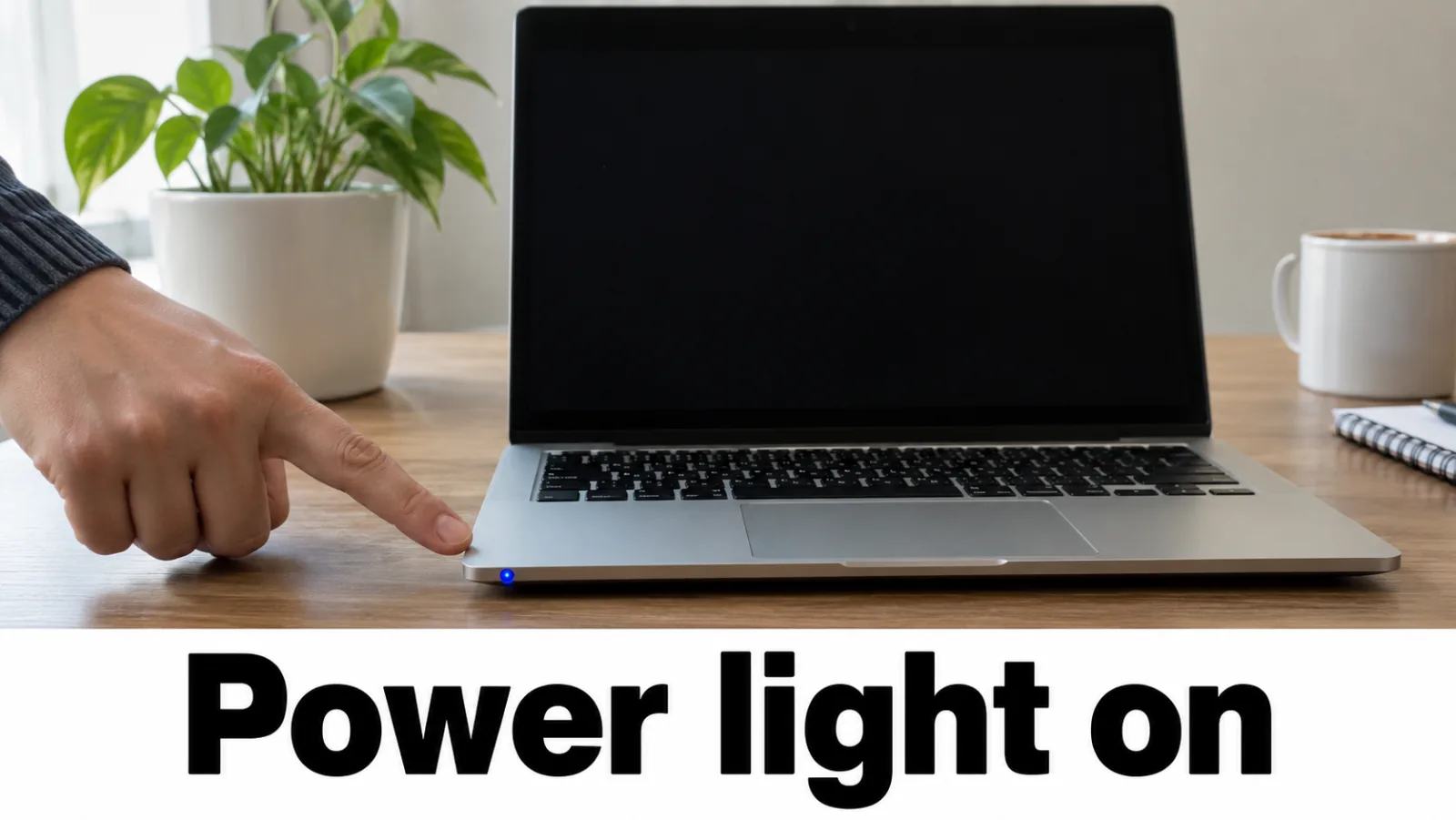
Step 1. Confirm power signs on the HP notebook
Confirm AC is connected. Look for power LED behavior for your series. If there are no power signs at all, leave this page and treat power / won’t-turn-on separately.
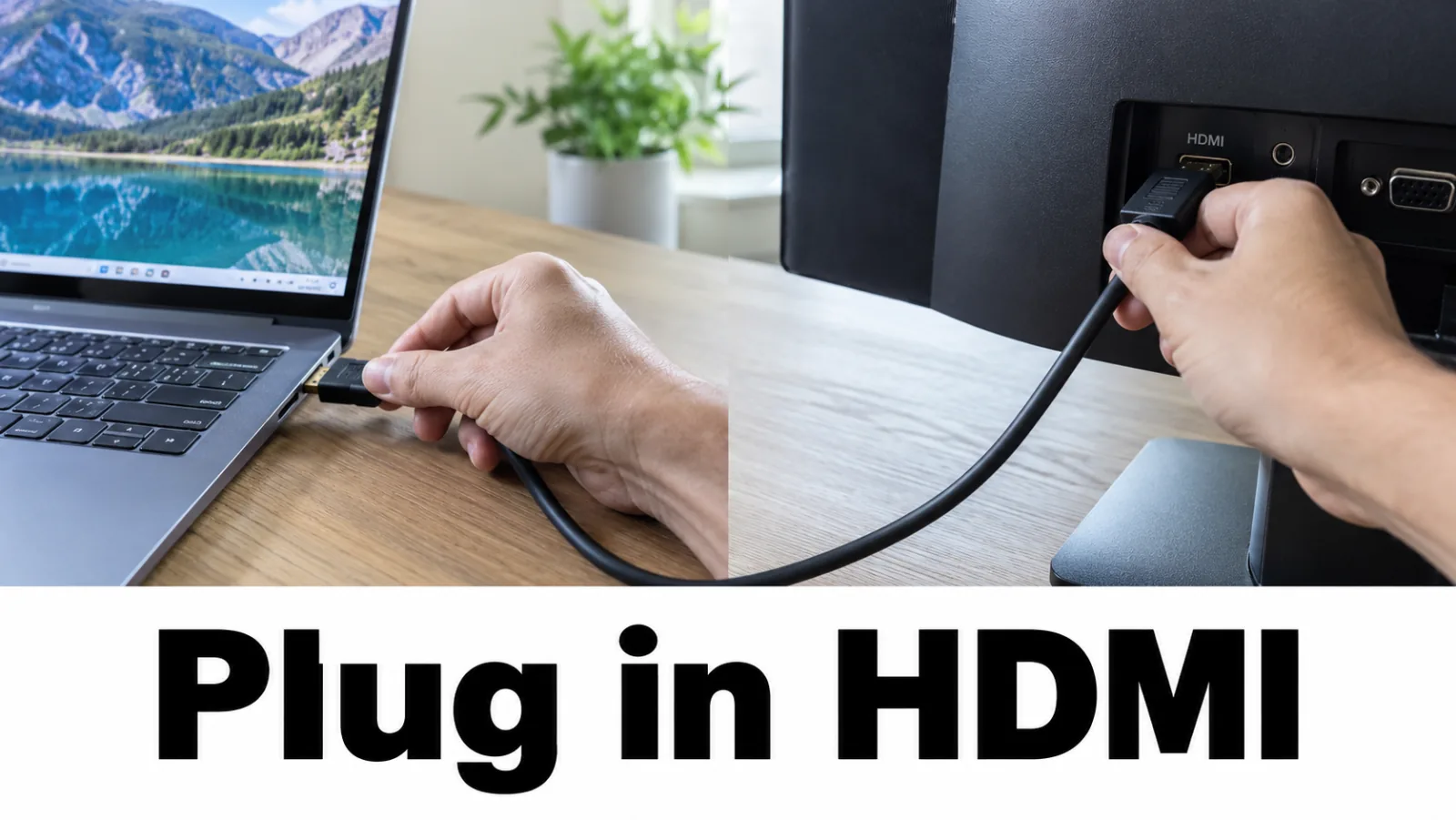
Step 2. Connect an external monitor and switch projection
Connect a known-good HDMI or DisplayPort monitor and power both devices. If the external stays blank, press F4 or the key with a monitor icon until an image appears, and also use Windows + P → Duplicate / Extend.
- External works → update graphics / chipset / BIOS from HP (next step), then backlight if the lid stays dark.
- External dark → return to the external monitor test (not an automatic LCD replacement conclusion).
Step 3. Update graphics, chipset, and BIOS from HP only
With a usable picture (external is fine), open HP Software and Driver Downloads for your product. Install the latest graphics and chipset packages; install BIOS only when HP offers an update for that exact model and you have stable AC power. HP notes corrupted graphics drivers or LCD backlight problems among blank-screen causes after this branch.
Step 4. Optional HP BIOS recovery when both screens stay unusable
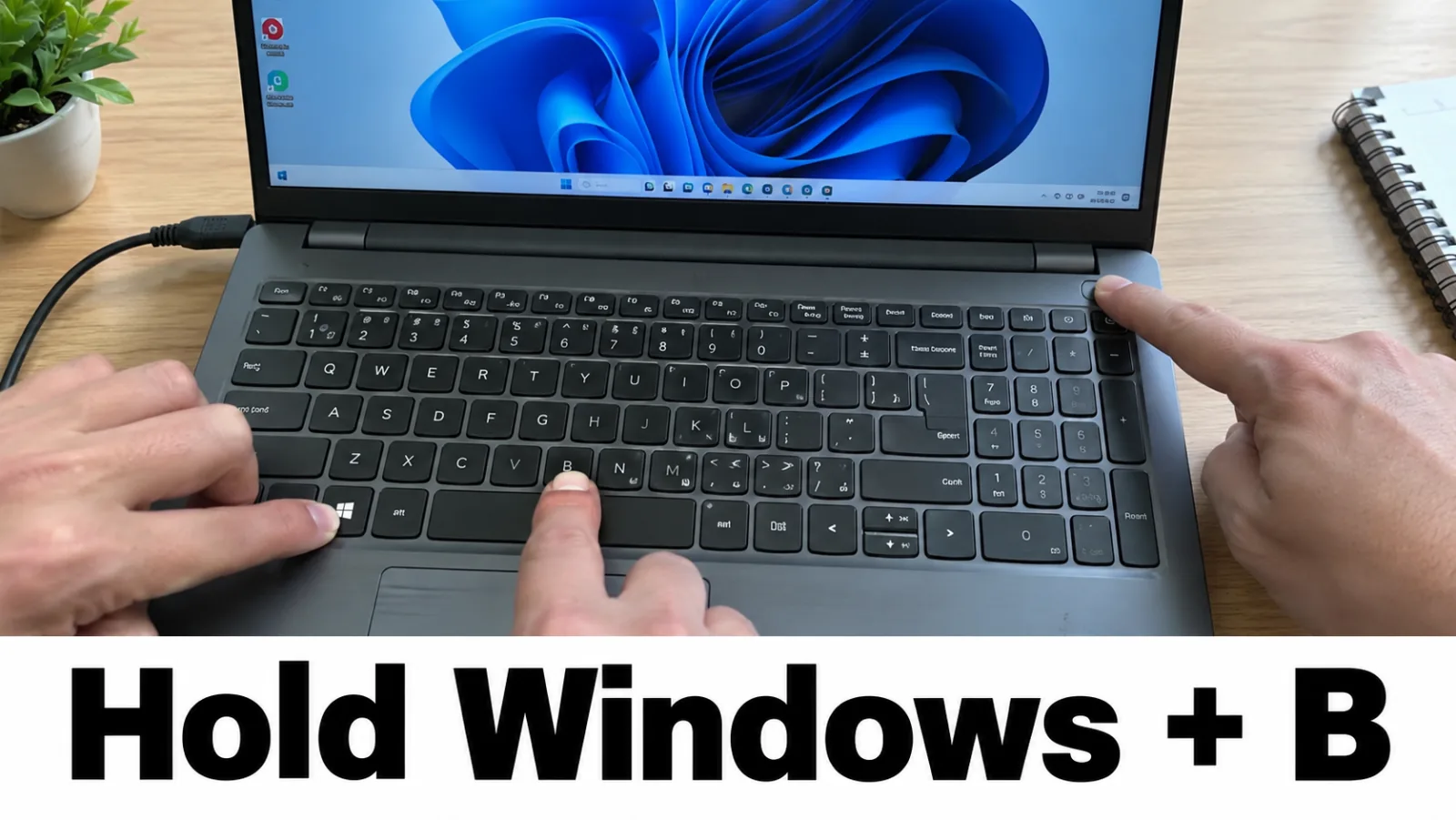
On models HP documents for BIOS recovery: shut down, connect AC, hold Windows + B, press power for about one second, then wait (~40 seconds) for the HP BIOS Update screen. For memory tests, HP PC Hardware Diagnostics is often Esc → F2 at power-on when the firmware UI is reachable. If you cannot follow on-screen prompts, stop and use HP Support / service rather than improvising board-level repair.
Step 5. Stay on the shared diagnosis tree
After HP-specific keys and downloads, continue with
home diagnosis,
external monitor test,
and
backlight
when the external works.
Do not edit
TdrDelay.
Driver-timeout wording belongs on
display driver stopped responding.
Official HP links
FAQ
External monitor blank — did the HP LCD fail?
Not from that fact alone. The external path bypasses the built-in panel. Fix cables, projection mode, drivers, and POST first. Only after the external works do you treat backlight or panel failure.
Where is the product number?
Usually on a bottom sticker or in BIOS. HP Support and driver downloads need that ID — do not guess a similar model.
Should I hold D for LCD BIST on HP?
No. Holding D is Dell’s LCD BIST. On HP, follow HP’s screen and blank-screen articles, then the site backlight guide after an external works.
DLL or one-click HP screen fixer?
No. Use support.hp.com drivers only. Do not edit TdrDelay.