Laptop screen flickering
If the panel is fully black instead, use black screen. Flicker can be a bad refresh mode, a recovering GPU driver (TDR), or a strained hinge cable — the timing clue matters.
Patterns
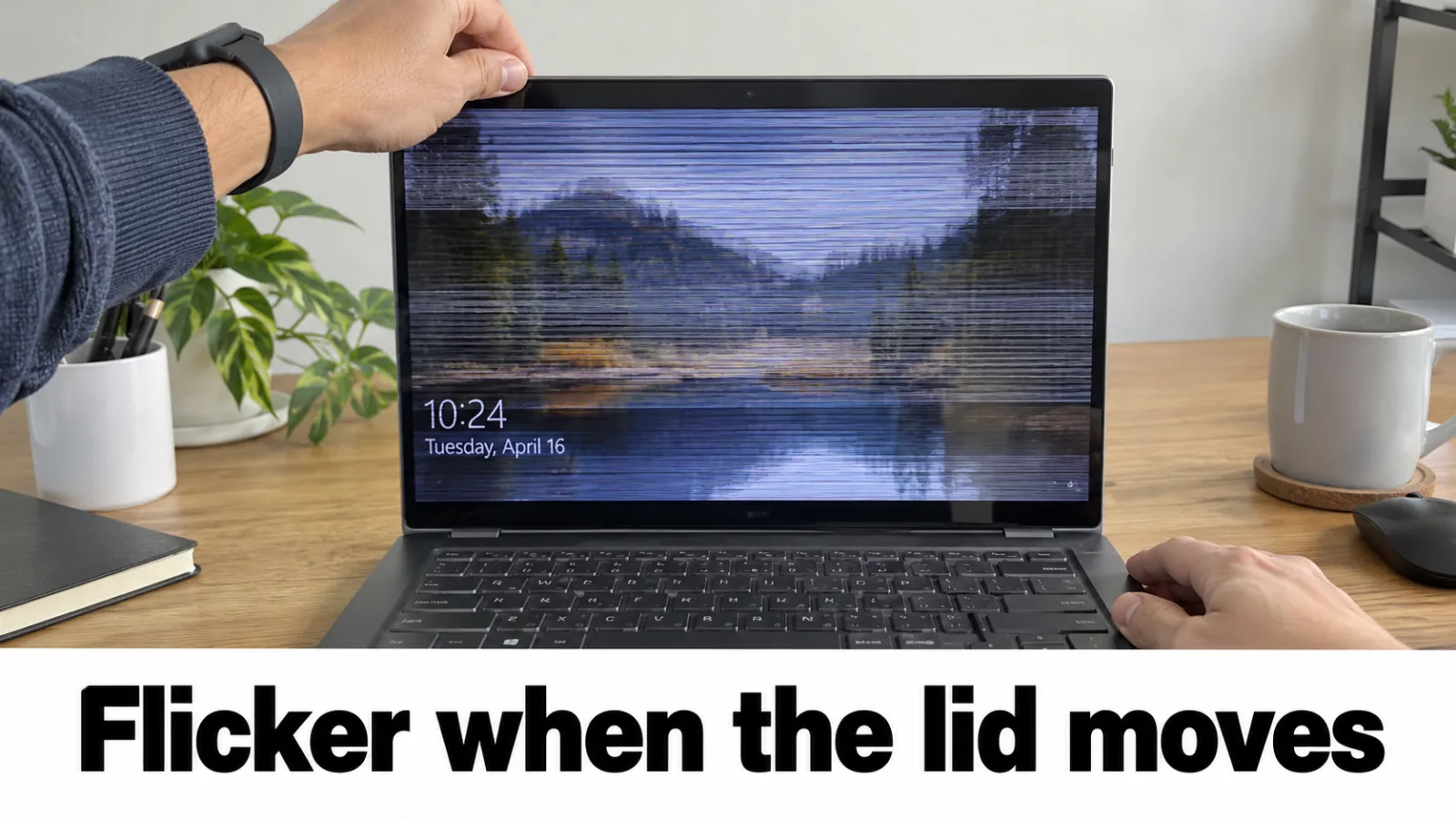
- Lid-angle flicker → suspect display cable; confirm external is stable first.
- Flash then “driver stopped responding” → TDR path; official drivers only.
- External OSD out of range / input not supported → resolution and refresh path on out of range.
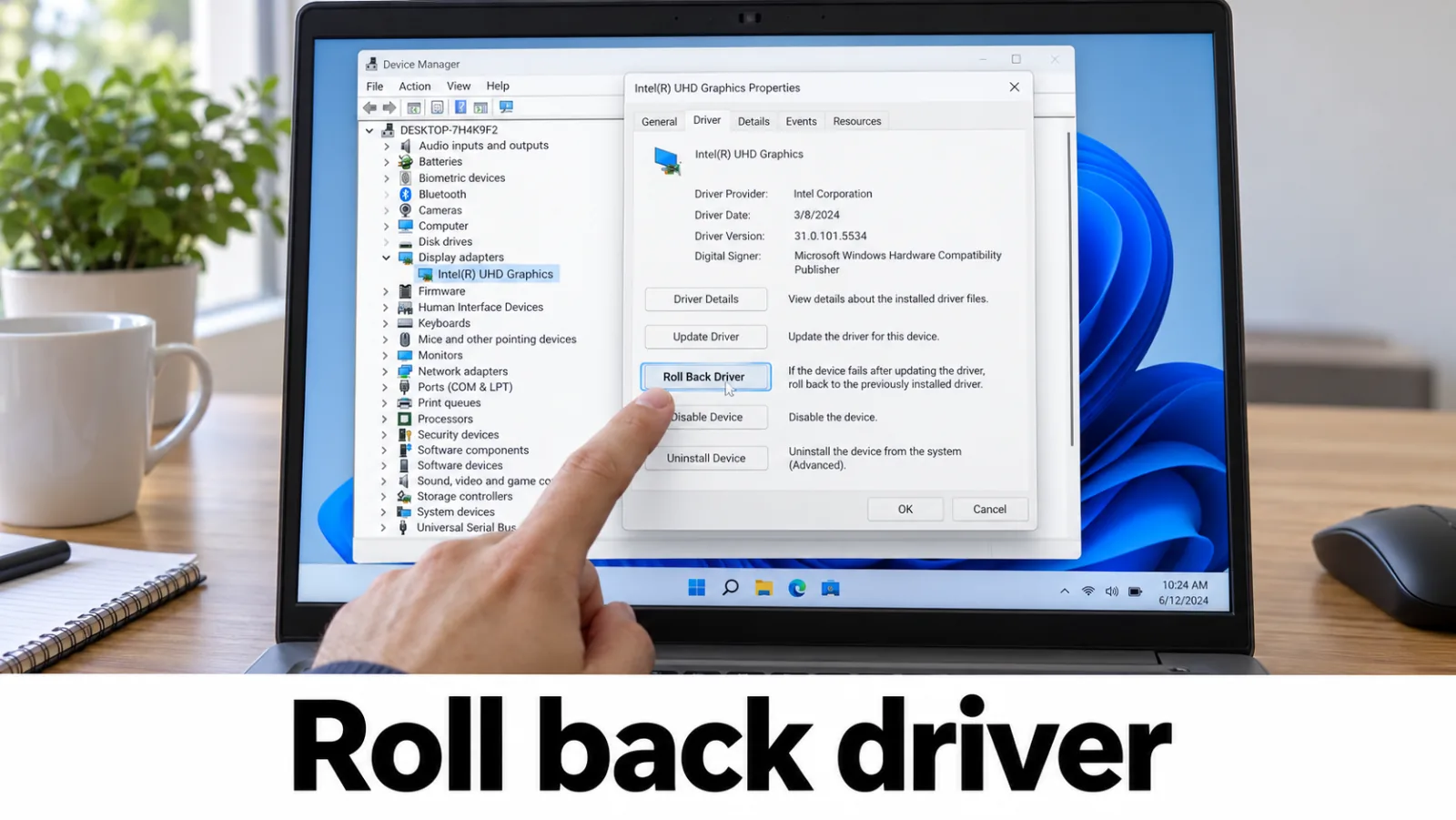
- Only after sleep or a driver update → rollback via Device Manager or OEM package.
Steps
Step 1. Note when flickering happens
Write down: lid motion, gaming load, connecting HDMI, or waking from sleep. If an external monitor is available, note whether it flickers too — that separates panel cable from GPU/driver.
Step 2. Update or roll back the display driver
Device Manager → Display adapters → Update driver, or Roll Back if the problem started after an update. Brief recoveries with a Microsoft TDR message belong on display driver stopped responding. Do not edit TdrDelay.
Step 3. Check refresh rate and cables
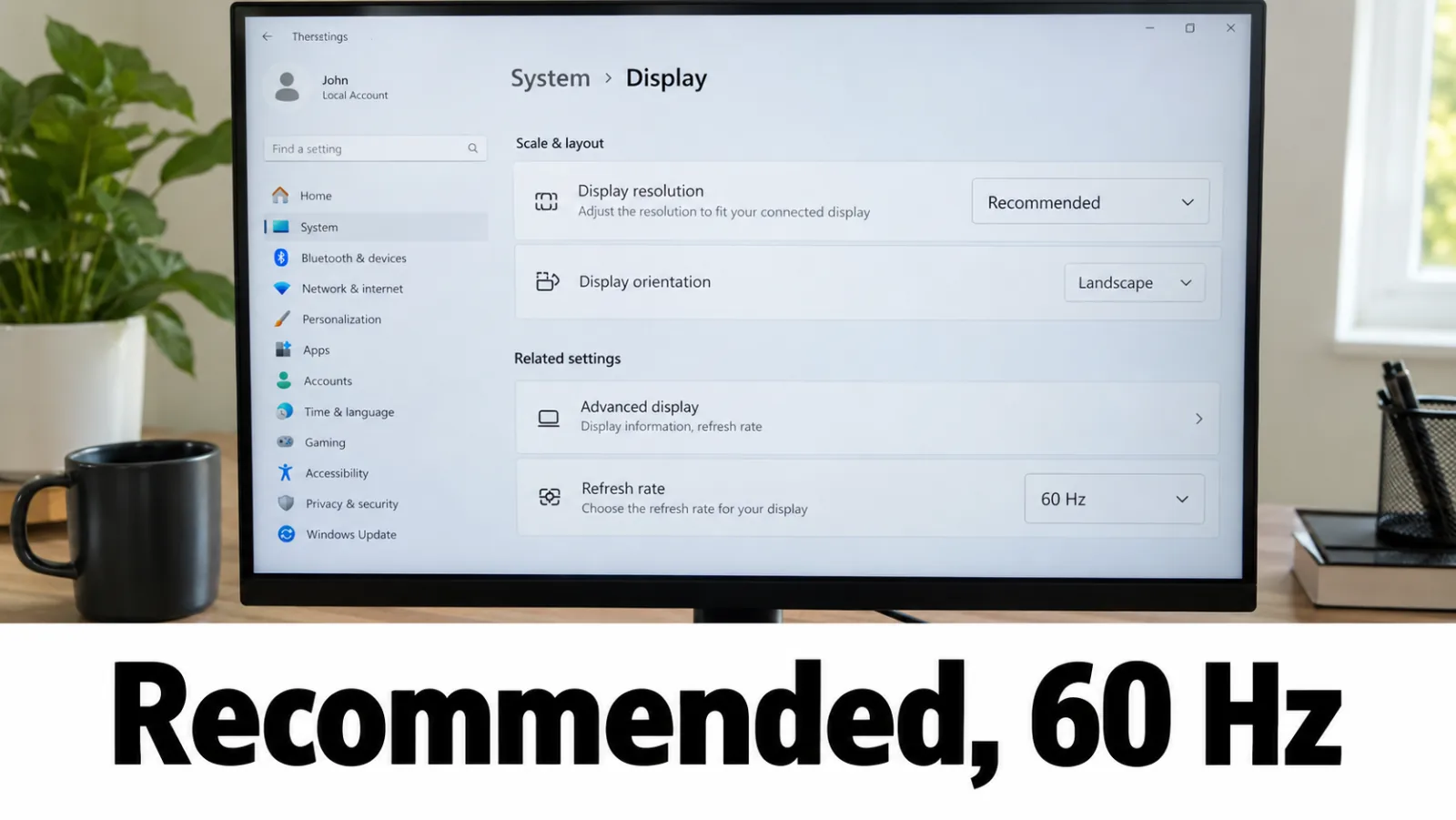
Settings → System → Display → Advanced display → choose a refresh rate marked Recommended when possible. Reseat HDMI/DP cables; remove questionable adapters. OSD wording may match input not supported.
Step 4. Hardware path if software fails
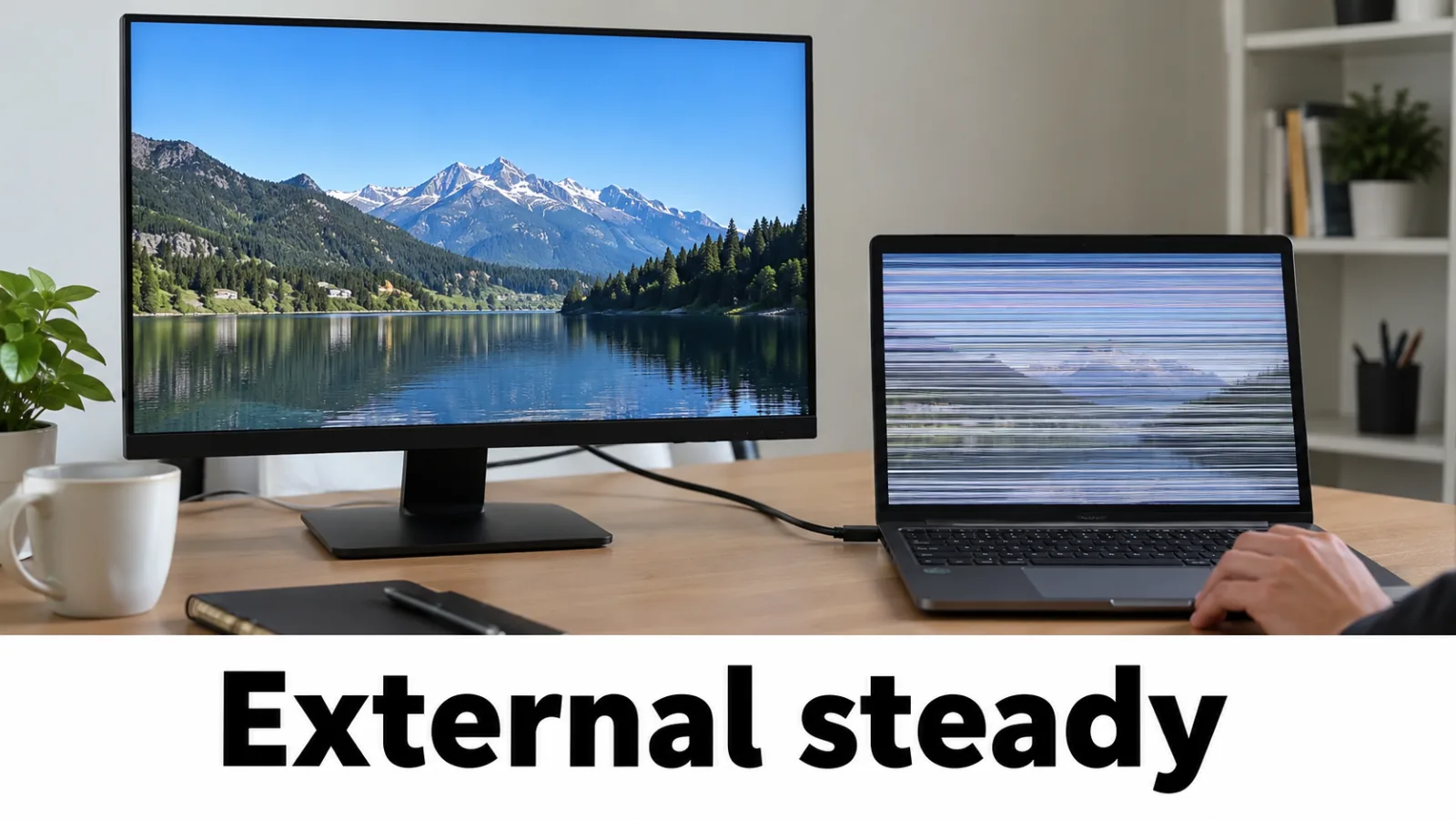
If the external is rock-solid but the laptop panel flickers with lid angle, continue at display cable checks after backlight basics. Still fully black with power? Return to the external monitor test.
FAQ
External monitor is stable but the laptop flickers — meaning?
Likely panel or cable. See the display cable guide after brightness basics.
Does TDR cause flicker?
TDR recovers a hung GPU and may flash the screen. If Windows says the display driver stopped responding and has recovered, follow that guide. Update the driver. Do not edit TdrDelay.
Is flicker the same as a full black screen?
Related but not identical. Full black with power signs still starts at the external monitor test.